Shopify Payments Explained
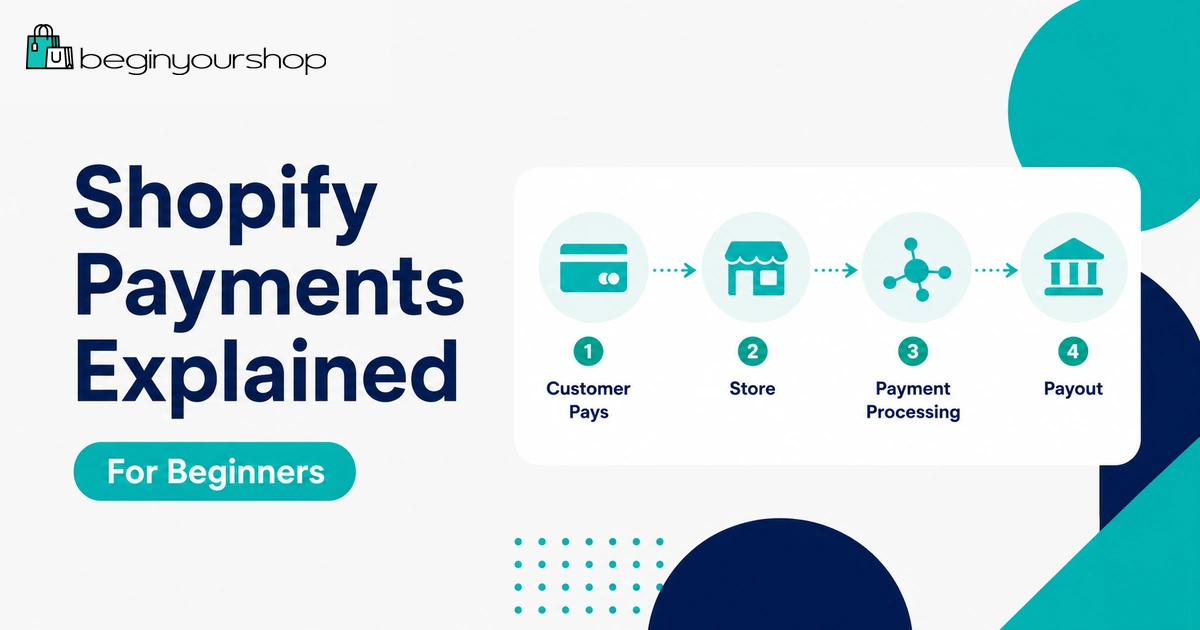
Shopify Payments is Shopify’s built-in payment processor. It lets eligible stores accept credit cards and other supported payment methods directly through Shopify, manage payouts inside the Shopify admin, and avoid many of the extra third-party transaction fees that apply when using outside payment providers.
This beginner-friendly guide explains how Shopify Payments works, who can use it, what fees to expect, how payouts work, how it compares with third-party payment providers, and what to check before accepting real customer payments.
Shopify Payments is Shopify’s built-in payment processor. It lets eligible stores accept credit cards and other supported payment methods directly through Shopify, manage payouts inside the Shopify admin, and avoid many of the extra third-party transaction fees that apply when using outside payment providers.
This beginner-friendly guide explains how Shopify Payments works, who can use it, what fees to expect, how payouts work, how it compares with third-party payment providers, and what to check before accepting real customer payments.
Payments are one of the most important parts of a Shopify store. If customers cannot pay easily, the store cannot function as a business.
Shopify Payments is Shopify’s built-in payment solution. For eligible stores, it can make payment setup simpler because you can activate payments from the Shopify admin instead of creating and connecting a completely separate merchant account or payment gateway.
For beginners, Shopify Payments is often the simplest payment option when it is available in your country and supports your business type. It can help you accept major cards, manage payment settings, view transactions, review payouts, and reduce the need to manage a separate payment processor dashboard.
However, Shopify Payments is not available everywhere, and not every business type is eligible. Fees, payout timing, verification requirements, accepted payment methods, local payment methods, chargebacks, and tax reporting rules can vary by country and region.
This guide explains Shopify Payments in plain English so you know what to expect before launching your store.
Last checked: May 11, 2026. Shopify Payments availability, rates, payment methods, payout rules, verification requirements, and transaction fee policies can change. Always confirm current details in your Shopify admin and Shopify’s official Help Center before setting up payments.

Quick Answer
Shopify Payments is the easiest payment option for many beginner Shopify stores because it is built into Shopify. If your store is eligible, you can activate it from your Shopify admin, accept supported payment methods, view payouts inside Shopify, and avoid third-party transaction fees on orders processed through Shopify Payments.
Best for
Eligible Shopify stores that want a built-in payment processor managed inside the Shopify admin.
Main benefit
You avoid third-party transaction fees on orders processed through Shopify Payments and can manage payouts in Shopify.
Main limitation
It is available only in supported countries and regions, and some business types may not be eligible.
Most beginners should check Shopify Payments first. If it is not available or does not support your business category, then compare third-party payment providers that Shopify supports.
What Is Shopify Payments?
Shopify Payments is Shopify’s own payment provider. It lets eligible merchants accept payments directly through Shopify without setting up a separate third-party payment provider or merchant account.
With Shopify Payments, customers can enter payment details at checkout without being sent to a separate external checkout page. Store owners can manage payment settings, transactions, and payouts from the Shopify admin.
Shopify Payments can support credit cards and other payment methods depending on the country, region, customer location, currency, and settings available to your store.
For a beginner, the key value is simplicity. Instead of managing Shopify plus a separate payment gateway dashboard, Shopify Payments keeps more of the payment workflow inside Shopify.
How Shopify Payments Works
When a customer places an order through Shopify Payments, the payment is processed through Shopify’s payment system. After the payment is captured and processed, the funds are included in your Shopify Payments payouts, minus applicable fees, adjustments, refunds, chargebacks, or reserves where relevant.
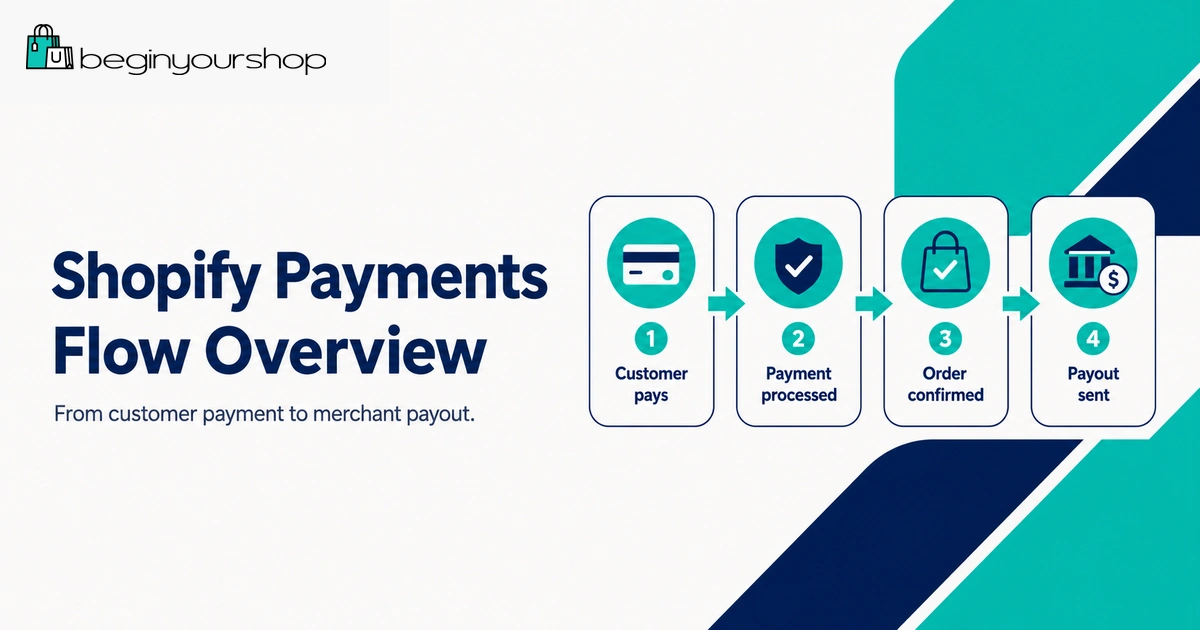
A simplified workflow looks like this:
- A customer adds products to cart.
- The customer goes to checkout.
- The customer pays using a supported payment method.
- Shopify Payments processes the payment.
- The order appears in your Shopify admin.
- The payment is included in a future payout according to your payout schedule.
- You manage the order, fulfillment, refund, or dispute workflow inside Shopify.
Shopify Payments does not remove the need to understand payment fees, chargebacks, taxes, customer support, or fraud risk. It simply makes the payment system more integrated.
Beginner takeaway: Shopify Payments can simplify setup, but it is still a real payment processor. Use accurate business information and review eligibility, fees, payout timing, and policies before launch.
Availability and Eligibility
Shopify Payments is not available in every country or region. Shopify says it is available only to stores that operate in certain supported countries and regions.
Availability can depend on:
- Your store country or region
- Your business type
- Your products or services
- Your bank account location and currency
- Your identity and business verification information
- Local payment rules and supported methods
If Shopify Payments is unavailable in your country, or if your business category is not supported, you need to choose another payment gateway that Shopify supports.
Unsupported or restricted businesses
Some businesses may be restricted by Shopify Payments or by payment network rules. Examples can include certain regulated products, high-risk categories, financial products, adult products, controlled goods, or other business types depending on country-specific terms.
Do not assume that your store is eligible just because you can create a Shopify account. Review the Shopify Payments requirements for your country and product category before building the entire business around it.
Setup Requirements
To use Shopify Payments, you need to provide accurate information about your business. The exact requirements depend on your country or region.
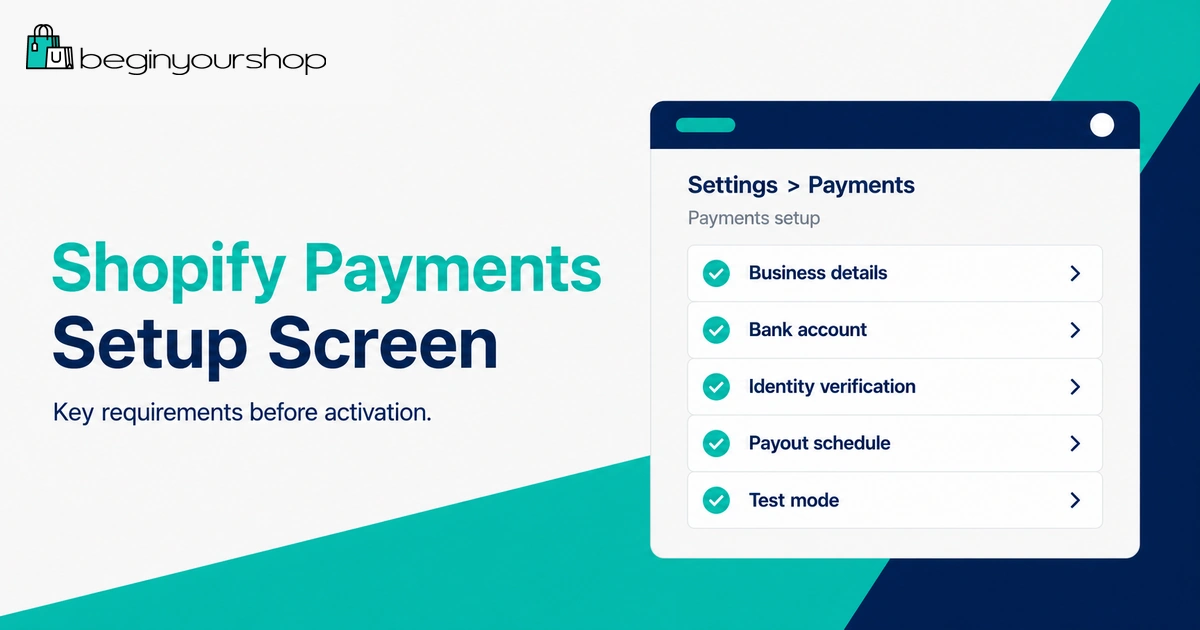
Shopify may ask for information such as:
- Legal name
- Date of birth
- Address
- Business name
- Business type
- Tax identification details where required
- Bank account information
- Business registration information where applicable
- Identity or business documents if verification is required
Shopify also requires two-step authentication for Shopify Payments. This is important because the payment account contains financial information and payout access.
Setup path in Shopify
The basic setup path is:
- From your Shopify admin, go to Settings.
- Open Payments.
- Find the Shopify Payments section.
- Complete account setup.
- Enter accurate personal, business, tax, and banking details.
- Submit any requested verification information.
- Review payment methods, payout settings, and test mode options.
Do not enter fake details to move faster. Payment verification problems can delay payouts, limit payments, or create account issues later.
Shopify Payments Fees
Shopify Payments fees depend on your Shopify plan, country, card type, payment method, transaction type, and whether the payment is online, in person, domestic, international, manually entered, or converted between currencies.
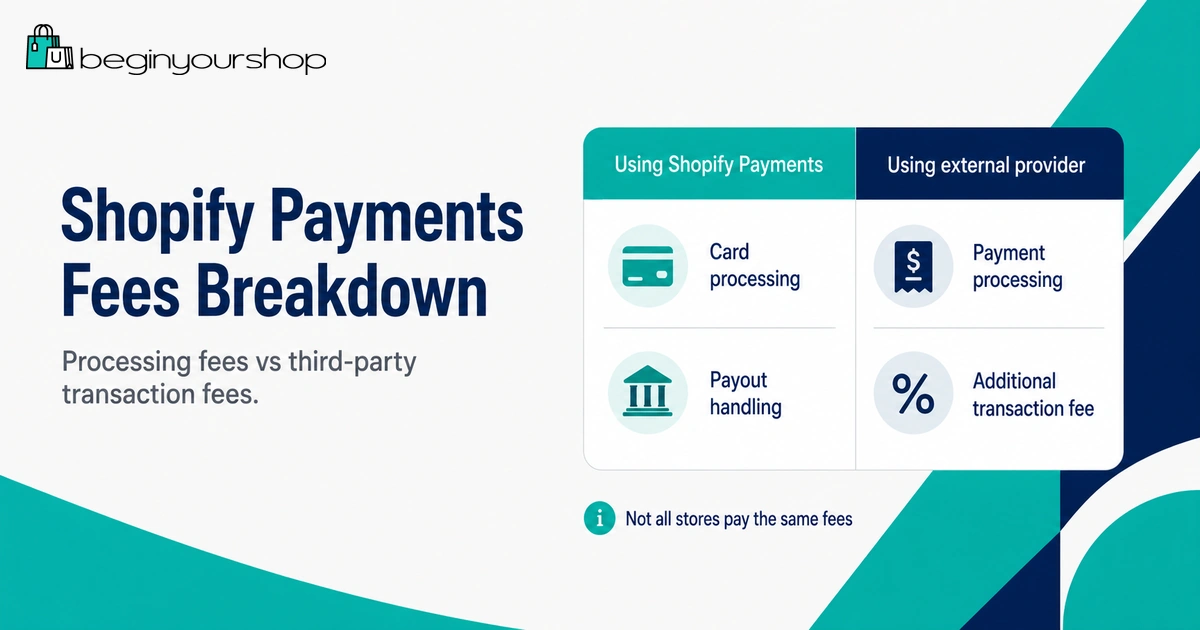
Shopify states that aside from the credit card rate and your Shopify subscription plan fees, there are no monthly fees, hidden fees, or setup fees for Shopify Payments.
Typical fee categories
| Fee type | What it means | Beginner note |
|---|---|---|
| Credit card rate | The fee charged to process card payments through Shopify Payments. | Rates vary by Shopify plan and transaction type. |
| In-person card rate | The rate for payments accepted through Shopify POS or supported in-person methods. | Usually different from online card rates. |
| International card fee | Additional charges may apply for international cards or some payment methods. | Important if you sell across countries. |
| Currency conversion fee | May apply when converting payment currency into your payout currency. | Important for international selling and multi-currency stores. |
| Chargeback or dispute fees | Fees and adjustments may apply when customers dispute transactions. | Reduce risk with clear policies, tracking, and customer support. |
As of Shopify’s U.S. pricing page checked for this guide, Shopify lists online card rates starting at 2.9% + 30¢ USD on Basic, 2.7% + 30¢ USD on Grow, and 2.5% + 30¢ USD on Advanced. In-person rates are listed separately, and plan prices or rates can differ by country, currency, billing cycle, and promotion.
Does upgrading lower payment rates?
Yes, Shopify says credit card rates can be lower on higher subscription plans. But beginners should not upgrade only for lower rates unless the sales volume justifies the higher subscription cost.
For most new stores, keeping fixed monthly costs low matters more than small rate differences. Revisit plan economics after you have consistent sales.
Third-Party Transaction Fees
Third-party transaction fees are different from payment processing fees.
When you use Shopify Payments as your processor, Shopify says there are no third-party transaction fees for orders processed through Shopify Payments. Shopify also says that when Shopify Payments is used, third-party transaction fees are not charged for orders processed using Shopify Payments, Shop Pay, Shop Pay Installments, PayPal Express Checkout, or manual payment methods such as cash, cash on delivery, and bank transfers.
If you use a third-party payment provider instead of Shopify Payments, Shopify may charge third-party transaction fees in addition to whatever your payment provider charges. Shopify’s pricing page lists third-party payment provider fees of 2% on Basic, 1% on Grow, and 0.6% on Advanced for the U.S. pricing page checked for this article.
Important distinction: Payment processing fees are charged for processing customer payments. Third-party transaction fees are Shopify platform fees that can apply when using outside payment providers. They are not the same fee.
Example: Shopify Payments vs third-party provider
| Setup | Fees you may pay | Beginner takeaway |
|---|---|---|
| Shopify Payments | Shopify Payments credit card rate and any applicable card, currency, dispute, or special payment method fees. | Simpler for eligible stores and avoids third-party transaction fees on Shopify Payments orders. |
| Third-party payment provider | Provider’s own processing fees plus Shopify third-party transaction fees where applicable. | Can be necessary, but compare total cost carefully. |
| Shopify Payments plus extra methods | Depends on method. Some methods are excluded from third-party transaction fees when Shopify Payments is active. | Review Shopify’s current rules for PayPal, manual methods, store credit, gift cards, and alternate gateways. |
Payouts and Getting Paid
A payout is the money sent from Shopify Payments to your bank account after payments are processed, adjusted, and scheduled.
Payout timing can vary by country, payment method, bank, verification status, risk review, weekends, holidays, or account issues. New accounts may also experience additional verification steps or payout holds.
What affects payouts?
- Your country or region
- Your payout schedule
- Bank processing times
- Payment method used by the customer
- Verification status
- Refunds, adjustments, or chargebacks
- Risk reviews or payout holds
- Currency conversion where applicable
Shopify lets you view payouts in your Shopify admin. This can help you understand which orders are included in a payout, what fees were deducted, and when money is expected to be sent.
Beginner payout checklist
- Confirm your bank account details are correct.
- Complete all verification requirements.
- Review payout schedule settings.
- Understand that payouts are not always instant.
- Track refunds, chargebacks, and adjustments.
- Keep enough cash flow for shipping, inventory, and refunds.
Do not rely on same-day payout assumptions unless your account, country, and payment method clearly support it.
Accepted Payment Methods
Shopify Payments can support different payment methods depending on your store location and customer location.
Potential payment methods may include:
- Major credit and debit cards
- Shop Pay
- Shop Pay Installments where available
- Apple Pay
- Google Pay
- PayPal Express Checkout in certain Shopify setups
- Local payment methods in supported regions
- In-person payments with Shopify POS in supported setups
Availability can vary. Do not assume every payment method is available in your country or for your business type.
Local payment methods
Local payment methods can matter if you sell internationally or in a region where customers prefer specific payment options. Shopify Payments may support certain local payment methods depending on country and eligibility.
Before launch, check which payment methods are visible in your checkout and whether they match customer expectations in your target market.
Shop Pay and Express Checkout
Shop Pay is Shopify’s accelerated checkout option. It can help returning customers check out faster by saving certain checkout information for future purchases.
For eligible stores using Shopify Payments, Shop Pay and related options may appear as part of the checkout experience. Shopify’s Help Center states that when using Shopify Payments, merchants are not charged third-party transaction fees for orders processed through Shop Pay and Shop Pay Installments.
Express checkout buttons can be useful, but they should not replace clear product pages, shipping details, return policies, and trust information. A fast checkout is most effective when customers already understand what they are buying.
Testing Shopify Payments
Before accepting real orders, test your checkout and payment setup.
Shopify says you can test Shopify Payments by activating test mode and using test credit card numbers to simulate payments. Shopify also notes that test mode can only be used after Shopify Payments setup is completed, and testing Shopify Payments generally requires a paid plan.
Testing checklist
- Complete Shopify Payments setup.
- Activate test mode if appropriate.
- Use Shopify’s test card numbers to simulate a successful payment.
- Test a failed payment scenario if needed.
- Confirm the order appears in your admin.
- Check customer order confirmation emails.
- Review inventory changes.
- Do not fulfill test orders as real orders.
- Turn off test mode before accepting real customer payments.
Launch warning: Do not leave test mode on when you are ready to accept real orders. Shopify says real payments are not captured while test mode is activated.
Refunds, Disputes, and Chargebacks
Payment setup is not only about accepting money. You also need to understand refunds and disputes.
Refunds
If you refund an order, the customer may receive money back according to the payment method and bank processing timeline. Shopify notes that credit card transaction fees are not returned to you when you issue a refund.
Before launch, publish a clear refund policy so customers know what is refundable, how returns work, and how long refunds may take.
Disputes and chargebacks
A chargeback happens when a customer disputes a card transaction. Chargebacks can occur for reasons such as fraud claims, product not received, product not as described, duplicate charge, or unrecognized transaction.
Reduce dispute risk by:
- Using clear product descriptions
- Providing accurate shipping timelines
- Sending order and shipping confirmations
- Using tracking when possible
- Responding quickly to customer questions
- Making your store name recognizable on billing statements where possible
- Keeping records of fulfillment and communication
Chargebacks are part of online selling risk. Treat prevention and documentation as part of your payment setup.
Shopify Payments vs Third-Party Payment Providers
Shopify Payments is not the only way to accept payments on Shopify. If it is unavailable, unsupported, or not the best fit for your business, you can review third-party payment providers supported by Shopify.
| Factor | Shopify Payments | Third-party payment provider |
|---|---|---|
| Setup | Set up directly in Shopify admin | May require account setup with another provider |
| Eligibility | Only in supported countries and business categories | Depends on provider, country, and business type |
| Checkout | Integrated with Shopify checkout | Can be direct or external depending on provider |
| Fees | Credit card rates and applicable payment fees; no third-party transaction fees on Shopify Payments orders | Provider fees plus possible Shopify third-party transaction fees |
| Payouts | Viewed inside Shopify admin | May be managed through provider dashboard |
| Best for | Eligible stores that want simple built-in processing | Stores where Shopify Payments is unavailable or a specific provider is needed |
When a third-party provider may make sense
A third-party payment provider may make sense if:
- Shopify Payments is not available in your country.
- Your business type is not supported by Shopify Payments.
- You need a specific local payment provider.
- You already have a merchant account with special terms.
- Your market expects a payment method not supported by Shopify Payments.
Before choosing a third-party provider, compare total cost. Include provider processing fees, Shopify third-party transaction fees, payout timing, chargeback policy, support quality, and checkout experience.
Shopify Payments Before Launch Checklist
Before you launch your store, review payment setup carefully.
| Checklist item | Why it matters |
|---|---|
| Confirm Shopify Payments availability | You need to know whether it is supported in your country and business category. |
| Complete account setup | Missing information can delay activation or payouts. |
| Enable two-step authentication | Shopify requires it for Shopify Payments and it protects financial access. |
| Review card rates and fees | You need to understand real cost per order. |
| Check payout bank details | Incorrect bank information can delay payment. |
| Review payout schedule | Helps cash flow planning for shipping and fulfillment. |
| Check payment methods at checkout | Customers should see the payment options you expect. |
| Place a test order | Confirms checkout, notifications, inventory, and order processing. |
| Disable test mode before launch | Real payments are not captured while test mode is active. |
| Publish clear refund and shipping policies | Helps reduce confusion, support issues, and disputes. |
Common Beginner Mistakes
Mistake 1: Assuming Shopify Payments is available everywhere
Shopify Payments is available only in supported countries and regions. Check availability before planning your payment setup.
Mistake 2: Ignoring business eligibility
Some product types or business categories may not be supported. Confirm eligibility before launching.
Mistake 3: Confusing processing fees with transaction fees
Credit card processing fees and third-party transaction fees are not the same. Compare both when reviewing payment providers.
Mistake 4: Leaving test mode on
Test mode is useful before launch, but it must be turned off before accepting real payments.
Mistake 5: Entering inaccurate business information
Payment verification depends on accurate information. Fake or mismatched details can cause account and payout problems.
Mistake 6: Not checking payout timing
Payouts are not always instant. Plan cash flow for shipping, inventory, refunds, and operations.
Mistake 7: Not preparing for disputes
Clear product pages, shipping timelines, tracking, policies, and support can reduce chargebacks and customer confusion.
Shopify Payments FAQ
What is Shopify Payments?
Shopify Payments is Shopify’s built-in payment provider. It lets eligible merchants accept supported payments directly through Shopify and manage transactions and payouts inside the Shopify admin.
Is Shopify Payments required?
No. If Shopify Payments is unavailable or not suitable for your store, you can use a supported third-party payment provider. However, third-party transaction fees may apply when using outside providers.
Is Shopify Payments free?
There are no monthly, hidden, or setup fees for Shopify Payments beyond your Shopify subscription and applicable credit card rates. Other fees may apply depending on transaction type, card type, currency conversion, disputes, or special payment methods.
Does Shopify Payments remove transaction fees?
When you use Shopify Payments as your processor, Shopify says there are no third-party transaction fees for orders processed through Shopify Payments. Payment processing fees still apply.
What happens if I use a third-party payment provider?
You may pay the third-party provider’s processing fees plus Shopify third-party transaction fees. The exact cost depends on your Shopify plan, country, and provider.
Is Shopify Payments available in every country?
No. Shopify Payments is available only in certain supported countries and regions. If it is not available where your store operates, choose another supported payment gateway.
What information do I need to set up Shopify Payments?
The required information depends on your country. Shopify may ask for personal details, business information, tax details, bank account information, and verification documents. You must also use two-step authentication.
How long do Shopify Payments payouts take?
Payout timing varies by country, bank, payout schedule, payment method, verification status, holidays, and risk reviews. Check your payout settings and payout page inside Shopify.
Can I test Shopify Payments before launch?
Yes. Shopify lets you activate test mode and use test card numbers after Shopify Payments setup is complete. Testing generally requires a paid plan, and test mode must be turned off before accepting real orders.
Does Shopify Payments work with Shopify POS?
Shopify Payments can support in-person payments through Shopify POS in supported countries and setups. In-person card rates are different from online rates.
Can I use PayPal with Shopify Payments?
In many Shopify setups, PayPal Express Checkout can be used alongside Shopify Payments. Shopify’s Help Center states that when using Shopify Payments, PayPal Express Checkout is among the payment methods not charged third-party transaction fees. Always confirm current rules in your admin and Shopify Help Center.
Should beginners use Shopify Payments?
Most eligible beginners should start by reviewing Shopify Payments because it is integrated, simpler to manage, and can reduce third-party transaction fees. Use a third-party provider only when Shopify Payments is unavailable, unsupported, or not the best fit for your payment needs.
Final Thoughts
Shopify Payments is often the simplest payment setup for beginner Shopify stores. It is built into Shopify, lets eligible merchants accept payments without connecting a separate processor, and allows payouts and payment activity to be managed in the Shopify admin.
The main benefits are simplicity, integration, and avoiding third-party transaction fees on Shopify Payments orders. The main limitations are availability, eligibility, verification requirements, payment processing fees, payout timing, and possible restrictions for certain business types.
Before launch, confirm eligibility, complete setup, use accurate business information, review fees, test checkout, check payout settings, publish clear policies, and make sure test mode is off when you are ready for real orders.
Next recommended guide: Shopify Pricing Explained