Shopify Domain Setup
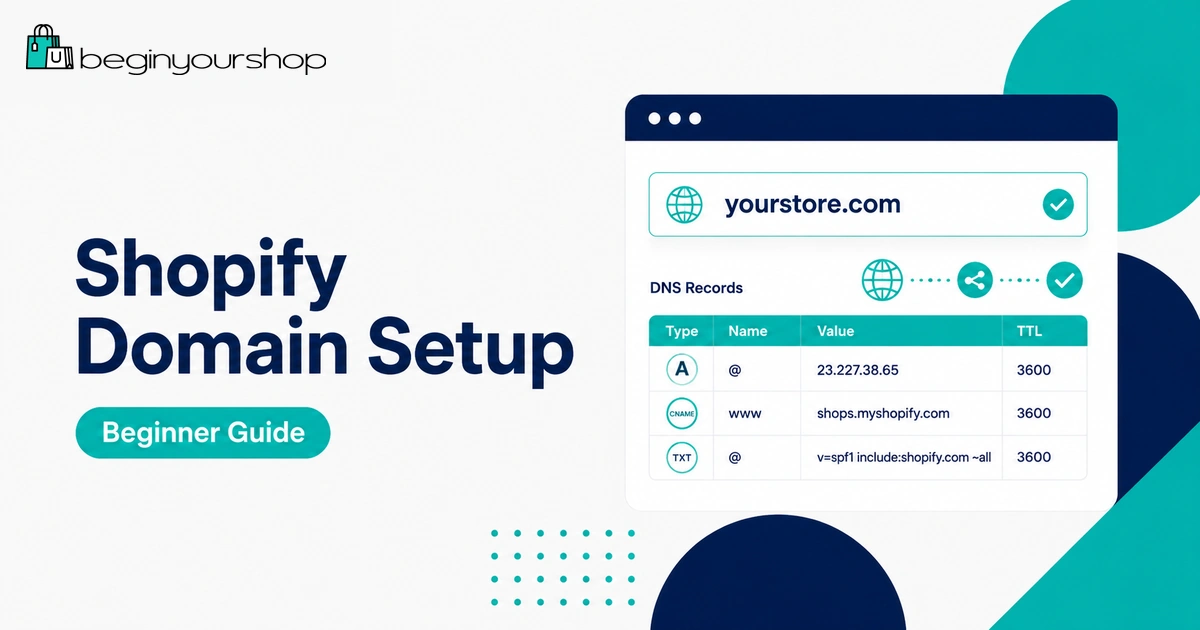
Setting up a custom domain is one of the key steps before launching a Shopify store. Your domain is the web address customers use to find your store, and it can affect trust, branding, email setup, redirects, SEO, and the final launch experience.
This beginner-friendly guide explains Shopify domain setup, including buying a domain through Shopify, connecting a third-party domain, setting a primary domain, using subdomains, understanding DNS records, setting up email, and troubleshooting common domain connection issues.
A Shopify store starts with a default myshopify.com URL, but most real stores should use a custom domain before launch. A custom domain makes your store easier to remember, more professional, and more aligned with your brand.
For example, instead of sending customers to a temporary-looking store address, you can use a domain such as yourstore.com or www.yourstore.com.
Domain setup can feel technical because it involves terms such as DNS, A record, AAAA record, CNAME, registrar, primary domain, subdomain, forwarding, SSL, and email authentication. The good news is that beginners usually need to understand only a small number of practical decisions:
- Should you buy a domain through Shopify or use a third-party provider?
- Should you connect your existing domain or transfer it?
- Which DNS records need to point to Shopify?
- Which domain should be the primary domain?
- How should email and subdomains be handled?
This guide explains those decisions step by step.
Last checked: May 11, 2026. Shopify domain settings, DNS records, supported domain providers, IP addresses, SSL behavior, and domain management options can change. Always confirm current details inside your Shopify admin and Shopify’s official Help Center before changing DNS records.

Quick Answer
To set up a Shopify domain, go to Settings > Domains in your Shopify admin. You can either buy a new domain through Shopify or connect a domain you already own from a third-party provider. If connecting manually, update your domain DNS records so the root domain points to Shopify and the www subdomain points to Shopify. After the domain connects, set your preferred domain as the primary domain and test the store in a browser.
Easiest setup
Buy a domain through Shopify if you want simpler domain management inside the Shopify admin.
Common setup
Connect a third-party domain if you already own your domain at a provider such as GoDaddy, Namecheap, Cloudflare, IONOS, or another registrar.
Most important check
Make sure DNS records, primary domain, HTTPS, email records, and redirects are working before launch.
What Is a Shopify Domain?
A domain is the web address customers type into a browser to visit your store. Shopify gives every store a default myshopify.com URL when the store is created, but you can add a custom domain so customers see your brand domain instead.
For example:
your-store.myshopify.comis a default Shopify URL.yourstore.comis a custom root domain.www.yourstore.comis a common subdomain.shop.yourstore.comis another possible subdomain.
Shopify says a domain that matches your brand can help build trust in your online store. For beginners, this is one of the reasons a custom domain is worth setting up before launch.
Important domain terms
| Term | Meaning |
|---|---|
| Domain | The web address customers use to visit your store, such as example.com. |
| Root domain | The main domain name, such as example.com. |
| Subdomain | A prefix added to the root domain, such as www.example.com or shop.example.com. |
| Registrar | The company where the domain is registered and renewed. |
| DNS | Domain Name System settings that tell browsers where your domain should point. |
| Primary domain | The main domain displayed in the browser address bar when customers browse your store. |
| A record | A DNS record that points the root domain to an IP address. |
| CNAME record | A DNS record that points a subdomain, such as www, to another domain name. |
Shopify Domain Setup Options
There are three main ways to use a custom domain with Shopify:
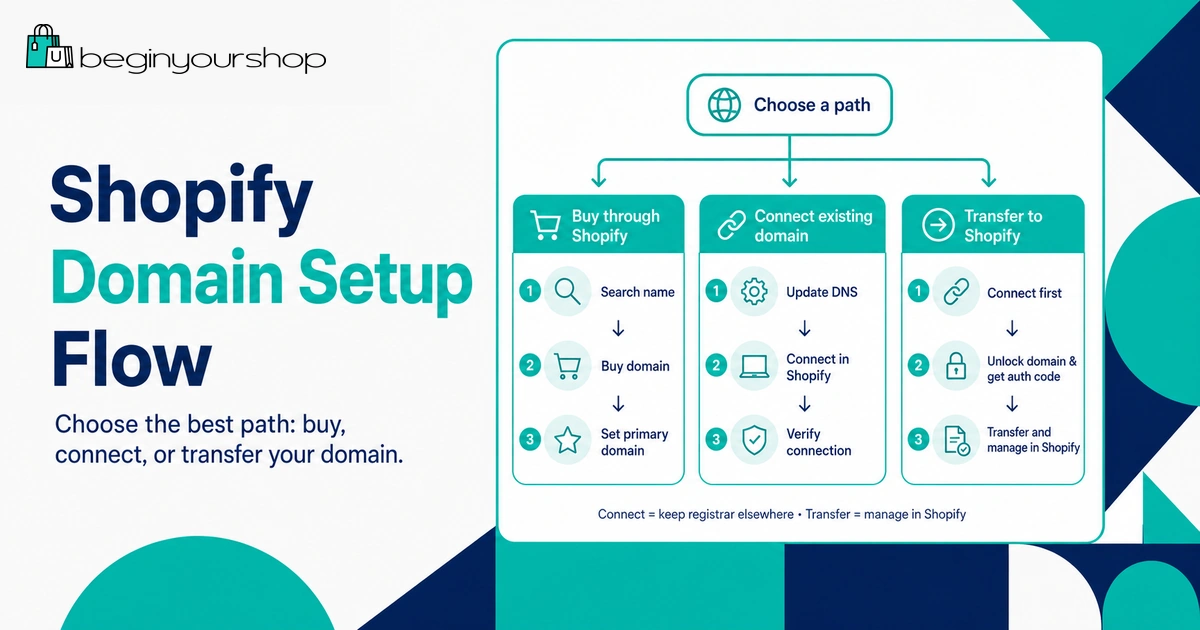
- Buy a new domain through Shopify.
- Connect an existing third-party domain to Shopify.
- Transfer an eligible third-party domain to Shopify.
For most beginners, the choice is between buying through Shopify or connecting an existing domain.
| Option | Best for | Main trade-off |
|---|---|---|
| Buy through Shopify | Beginners who want simpler domain management in Shopify. | Domain purchases are registered for one year, renew annually, and are non-refundable. |
| Connect third-party domain | Store owners who already bought a domain elsewhere. | You must manage DNS, renewal, billing, and some domain settings at the third-party provider. |
| Transfer domain to Shopify | Owners who want Shopify to become the domain management location if the domain is eligible. | Transfer eligibility, extension rules, timing, and email/DNS considerations vary. |
Option 1: Buy a Domain Through Shopify
Buying a domain through Shopify is usually the simplest path for beginners who do not already own a domain. Shopify manages the domain settings inside your Shopify admin, which reduces the need to work inside another registrar’s DNS dashboard.
Shopify says that if the domain you buy through Shopify is the first domain added to your store, it is automatically configured as the web address displayed to customers. If your store already has another domain, the new domain redirects to the primary domain.
How to buy a domain through Shopify
- From your Shopify admin, go to Settings > Domains.
- Choose the option to buy a new domain.
- Search for the domain name you want.
- Review available extensions and pricing.
- Check registration information carefully.
- Complete the purchase.
- Review the domain inside Shopify’s Domains settings.
Things to know before buying through Shopify
- Domains purchased through Shopify are registered for one year and can be renewed annually.
- After you buy a domain, you cannot change the URL you chose during purchase.
- Shopify domain purchases are non-refundable.
- Shopify does not provide email hosting services, but you can connect a Shopify-managed domain to a third-party email hosting service.
- Some top-level domains or country-specific domains may have special registration or verification requirements.
Buying through Shopify is convenient, but still choose the domain carefully. A domain is part of your brand and is not something you should purchase casually.
Option 2: Connect a Third-Party Domain
If you already own a domain from another provider, you can connect it to Shopify. This means the domain stays registered at your current provider, but its DNS records point visitors to your Shopify store.
Examples of third-party providers include:
- GoDaddy
- Namecheap
- Cloudflare
- IONOS
- Hostinger
- Wix
- Squarespace Domains
- Hover
- Network Solutions
- Alibaba Cloud
Shopify says some providers can be connected automatically, including Cloudflare, GoDaddy, and IONOS. If automatic setup is not available or fails, you can connect manually by editing DNS records.
Automatic connection
Automatic connection is the easier option when supported. The general flow is:
- From Shopify admin, go to Settings > Domains.
- Click Connect existing domain.
- Enter your domain name.
- Choose automatic connection if available.
- Log in to your domain provider when prompted.
- Approve the connection.
- Return to Shopify and review connection status.
Manual connection
Manual connection requires you to update DNS records at your domain provider. This is common and works well if you enter the records correctly.
After updating DNS, Shopify says changes usually take effect within two hours, but can take up to two days. Shopify also notes that it might take up to 48 hours for the domain to be fully live.
Connecting vs Transferring a Domain
Connecting and transferring are different.
When you connect a domain, the domain stays with your current provider. You update DNS records so the domain points to Shopify. You continue managing renewal, billing, and registrar settings at the provider.
When you transfer a domain, domain management moves to Shopify if the domain is eligible. You manage the domain from Shopify after the transfer is complete.
| Question | Connect domain | Transfer domain |
|---|---|---|
| Where is the domain registered? | At your third-party provider. | With Shopify after transfer. |
| Where do you manage renewal? | At your third-party provider. | Inside Shopify. |
| Where do you manage DNS? | Usually at your third-party provider. | Inside Shopify after transfer. |
| Best for | Keeping your existing registrar, DNS setup, and email services. | Consolidating domain management in Shopify if eligible. |
| Beginner recommendation | Connect first if you already own the domain and are unsure. | Transfer later if you want Shopify to manage the domain and the domain is eligible. |
Many beginners should connect first. It is often simpler than transferring, especially if your domain is already tied to email, DNS records, or other services.
DNS Records You Need to Know
DNS records tell the internet where your domain should point. For a standard manual third-party domain connection, Shopify lists the key records needed to point the root domain and www subdomain to Shopify.
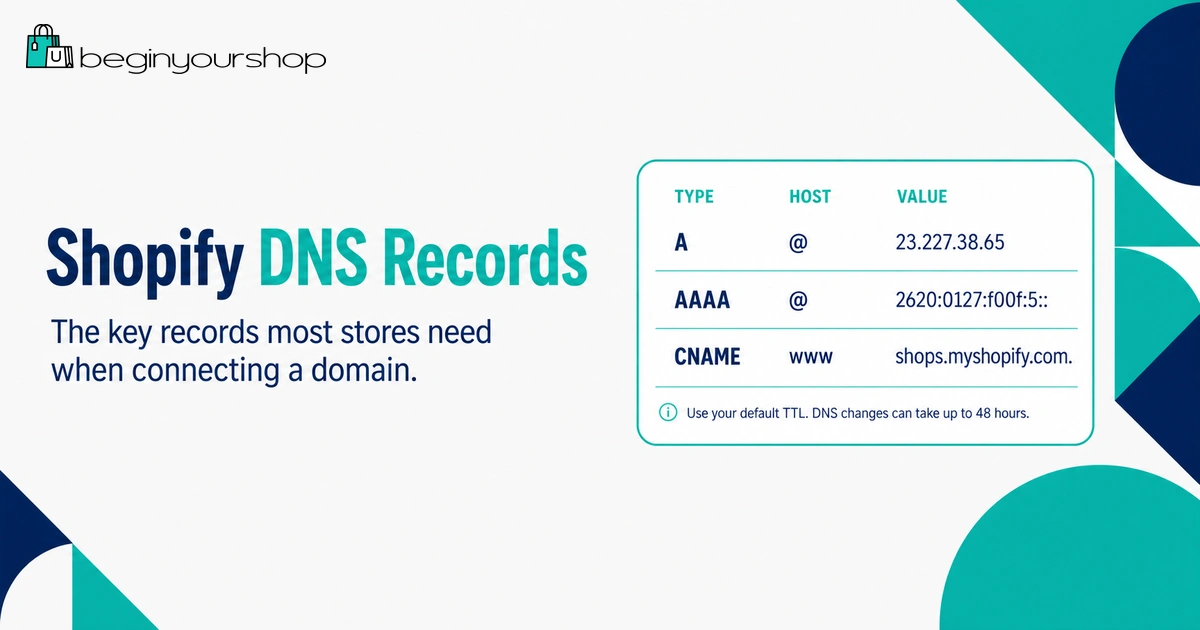
For manual setup, Shopify currently lists these required records:
- A record: point to Shopify’s IPv4 address
23.227.38.65. - AAAA record: point to Shopify’s IPv6 address
2620:0127:f00f:5::. - www CNAME record: point to
shops.myshopify.com.
Shopify also notes that some domain hosts might reject the condensed IPv6 address. In that case, Shopify provides the expanded IPv6 address 2620:0127:f00f:0005:0000:0000:0000:0000.
| Record type | Name / Host | Value / Points to | Purpose |
|---|---|---|---|
| A | @ |
23.227.38.65 |
Points the root domain to Shopify. |
| AAAA | @ |
2620:0127:f00f:5:: |
Points the root domain to Shopify using IPv6. |
| CNAME | www |
shops.myshopify.com. |
Points the www subdomain to Shopify. |
Important DNS cautions
- You should have only one A record associated with the root domain for Shopify.
- You should have only one
wwwCNAME record. - If old A records or old
wwwCNAME records exist, they may need to be changed or removed. - You usually do not need to change the TTL value; Shopify says you can use the default value.
- If your domain uses custom or external nameservers, Shopify says missing or incorrect nameserver information can prevent the domain from connecting even if DNS records look correct.
Be careful when editing DNS. Do not delete email-related records such as MX, SPF, DKIM, or DMARC unless you know exactly what they do.
Manual Domain Setup Steps
Manual setup is common when automatic connection is not available.
Step 1: Log in to your domain provider
Open the website where your domain is registered and log in. Look for areas such as:
- DNS settings
- Domain management
- Advanced DNS
- DNS records
- Zone editor
- Manage domain
Every provider uses slightly different labels, but the goal is the same: edit the DNS records for the domain.
Step 2: Update root domain records
Find the root domain A record. It may use the host name @. Point it to Shopify’s IPv4 address.
If your provider supports AAAA records, add or update the root domain AAAA record to Shopify’s IPv6 address.
Remove conflicting A or AAAA records for the root domain if needed. Conflicting records can cause the domain to point to the wrong location.
Step 3: Update the www CNAME record
Find the CNAME record named www. Point it to shops.myshopify.com..
Some DNS dashboards require the final period after shops.myshopify.com., and some add it automatically. Follow your provider’s formatting rules.
Step 4: Save changes
Save the DNS changes and wait for them to propagate. DNS changes can take time.
Step 5: Connect the domain in Shopify
- From your Shopify admin, go to Settings > Domains.
- Click Connect existing domain.
- Enter your domain, such as
example.com. - Click through the connection flow.
- Review the domain status inside Shopify.
Shopify says it might take up to 48 hours for the domain to be fully live. You can click the domain in Shopify to review connection details.
Set the Primary Domain
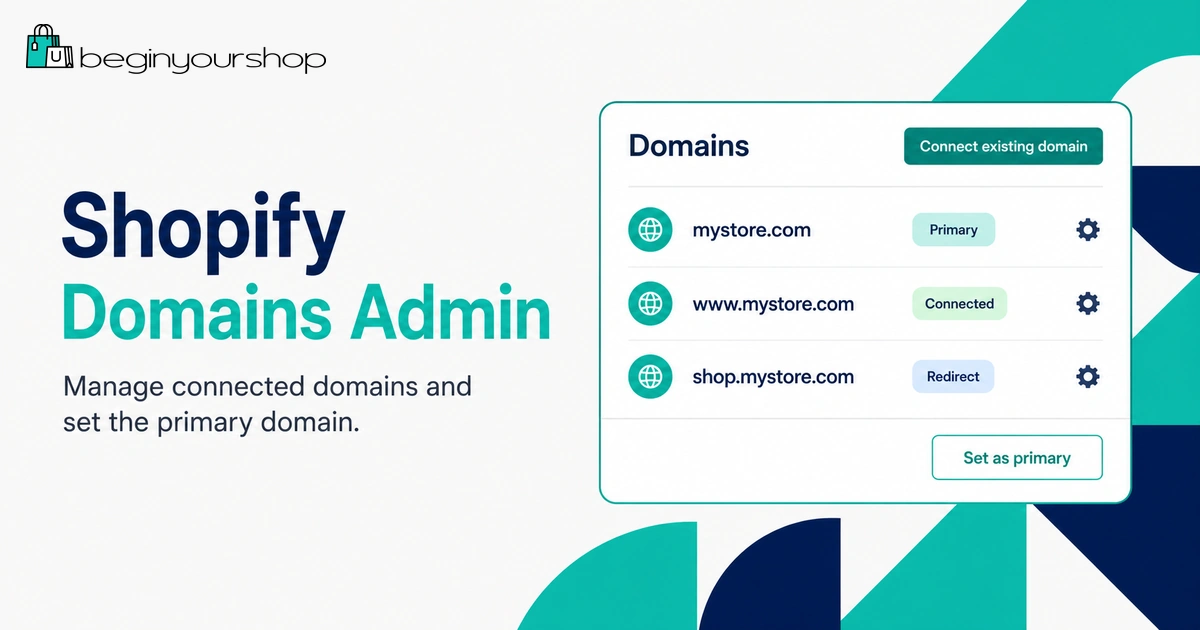
Your primary domain is the domain displayed in the browser address bar when customers visit your online store. If you add multiple domains, Shopify can redirect traffic to the primary domain.
For example, your store may have:
example.comwww.example.comexample.myshopify.com
You should choose one preferred version as the primary domain.
Which version should be primary?
Most stores choose either the root domain or the www version:
example.comwww.example.com
Either can be acceptable. The important point is consistency. Pick one primary domain and let other versions redirect to it.
Primary domain checklist
- Choose the domain you want customers to see.
- Set it as the primary domain in Shopify.
- Test the root domain and
wwwversion. - Confirm redirects work correctly.
- Use the primary domain in marketing links, social profiles, email signatures, and ads.
Using Subdomains with Shopify
A subdomain is a prefix added to your root domain. Examples include:
www.example.comshop.example.comstore.example.comaccount.example.com
You might use a subdomain if your root domain is used for another website and you want Shopify on shop.example.com. Shopify says that for a third-party subdomain, you need a CNAME record pointing the subdomain to shops.myshopify.com.
Subdomain setup example
| Goal | DNS record | Value |
|---|---|---|
Use shop.example.com for Shopify |
CNAME record named shop |
shops.myshopify.com |
Use www.example.com for Shopify |
CNAME record named www |
shops.myshopify.com |
Shopify notes that you do not need to assign a subdomain an A record for Shopify, even if using it as the primary domain.
Domain Email and Email Authentication
Domain setup and email setup are related, but they are not the same thing.
Shopify says it does not provide email hosting services for domains purchased through Shopify. You can connect your domain to a third-party email hosting service.
Common email services include:
- Google Workspace
- Microsoft 365
- Zoho Mail
- Proton Mail
- Other domain email providers
Email records to be careful with
Email services often rely on DNS records such as:
- MX records: route email to your email provider.
- SPF records: help authorize email senders.
- DKIM records: help authenticate emails with a digital signature.
- DMARC records: help email receivers decide how to handle unauthenticated mail.
Do not delete email records while connecting Shopify unless your email provider instructs you to. A common beginner mistake is changing DNS for Shopify and accidentally breaking email.
Shopify notification email authentication
Shopify’s domain terminology documentation explains that if you use a third-party domain, adding CNAME records to authenticate your domain configures DKIM automatically and can help prevent notification emails from being flagged as spam. Shopify also notes that a valid DMARC record helps prevent sender email rewriting.
If your store sends customer notifications from a branded email address, review Shopify’s sender email and email authentication settings before launch.
SSL, HTTPS, and Security
After your domain connects to Shopify, Shopify provisions security certificates so your store can load over HTTPS. This helps customers see a secure connection in the browser.
During setup, the domain might not show as fully secure immediately. DNS propagation and certificate provisioning can take time.
HTTPS checklist
- Open your store using
https://. - Test both root and
wwwversions. - Check that the browser does not show security warnings.
- Confirm images and scripts load properly.
- Wait for Shopify’s certificate provisioning if the domain was just connected.
If HTTPS is not working after domain setup, check DNS records first, then review the domain details page in Shopify.
SEO and Redirect Considerations
Domain setup can affect SEO if URLs change, redirects break, or multiple versions of the same site are accessible without a clear primary domain.
Before launch
If this is a new store with no traffic, domain setup is usually simple. Set the custom domain before launch and use that domain everywhere from the beginning.
If your store already has traffic
If you already shared or indexed another domain, be more careful. Review:
- Primary domain settings
- Redirects from old domain versions
- Links in social profiles
- Links in email templates
- Links in ads
- Google Search Console properties
- Analytics settings
- Backlinks if you already have them
For a new Shopify store, the best approach is simple: set your custom primary domain before serious promotion, then keep it consistent.
Troubleshooting Domain Issues
Domain problems are common, especially with third-party DNS setup.
Problem: Domain is not connecting
Possible causes:
- A record does not point to Shopify.
- AAAA record is missing or incorrect.
wwwCNAME does not point to Shopify.- Old conflicting records still exist.
- Domain uses custom nameservers not managed by your domain provider.
- DNS changes have not propagated yet.
- The domain is already connected to another Shopify store and needs ownership verification.
Problem: www works, but root domain does not
Check the root domain A and AAAA records. The www CNAME only handles the www subdomain. The root domain needs its own records.
Problem: root domain works, but www does not
Check the www CNAME record. It should point to Shopify. Also confirm there is not another conflicting www record.
Problem: email stopped working
You may have changed or removed email DNS records. Check MX, SPF, DKIM, and DMARC records with your email provider.
Problem: domain shows security warning
DNS or SSL provisioning may still be in progress. Confirm the domain records are correct and wait for Shopify to finish provisioning the certificate. If the issue persists, review the domain details page in Shopify and your DNS records.
Problem: domain is connected to another Shopify store
Shopify says that if a third-party domain is already connected to a different Shopify store, you may need to verify ownership through the connection flow, sometimes using automatic verification or a TXT record.
Shopify Domain Setup Checklist
Use this checklist before launching your store.
| Checklist item | What to confirm |
|---|---|
| Domain choice | The domain is short, brandable, readable, and not easily confused. |
| Domain ownership | You know where the domain is registered and who controls renewal. |
| DNS records | A, AAAA, and CNAME records point correctly to Shopify if using manual setup. |
| Nameservers | Nameservers are managed where you expect, and custom nameservers are not blocking connection. |
| Primary domain | Your preferred domain is set as the primary domain in Shopify. |
| Redirects | Root, www, and other connected domains redirect to the primary domain as intended. |
| HTTPS | The domain loads securely without browser warnings. |
| Email hosting records are not broken, and sender email authentication is reviewed. | |
| Store links | Social profiles, email templates, ads, and menus use the correct domain. |
| Launch test | The store opens correctly from a private browser window and mobile device. |
Domain Setup Best Practices for Beginners
Choose a domain before serious promotion
It is easier to set the correct domain before you start advertising, sharing links, or building backlinks. Changing domains later is possible, but it creates more work.
Keep your domain simple
A beginner store usually benefits from a domain that is short, clear, easy to pronounce, and easy to type.
Use one primary domain consistently
Avoid using different versions of your domain in different places. Pick one primary domain and use it across marketing, emails, social profiles, and business materials.
Do not delete DNS records blindly
DNS records can control your website, email, verification tools, analytics, and other services. Only delete records you understand.
Keep renewal under control
Domain expiration can take your store offline. Enable renewal reminders and make sure billing information stays current.
Common Shopify Domain Setup Mistakes
Mistake 1: Waiting until launch day to set up the domain
DNS and SSL can take time. Set up the domain before your planned launch day.
Mistake 2: Editing DNS without a backup
Before changing DNS records, take a screenshot or copy existing records. This helps you recover if something breaks.
Mistake 3: Deleting email records
Do not delete MX, SPF, DKIM, or DMARC records unless your email provider tells you to. Website DNS and email DNS can coexist.
Mistake 4: Having multiple conflicting records
Old A records, old CNAME records, or custom nameservers can prevent Shopify from connecting correctly.
Mistake 5: Forgetting to set the primary domain
Connecting a domain is not always enough. Set the preferred domain as primary so customers see the right address.
Mistake 6: Using a hard-to-type domain
A complicated domain can reduce trust and cause customers to mistype your address.
Mistake 7: Assuming Shopify hosts email
Shopify does not provide email hosting for domains. Use a separate email provider if you need branded email inboxes.
Shopify Domain Setup FAQ
Do I need a custom domain for Shopify?
You can start with the default myshopify.com URL, but a custom domain is strongly recommended for a real store. It looks more professional and makes your brand easier to remember.
Should I buy my domain through Shopify?
Buying through Shopify is convenient for beginners because domain settings are managed from Shopify. However, domain purchases through Shopify are non-refundable, and Shopify does not provide email hosting. If you already use another domain provider, connecting your existing domain can also work well.
Can I use a domain I bought from GoDaddy, Namecheap, Cloudflare, or another provider?
Yes. You can connect a third-party domain to Shopify by updating DNS records at your domain provider and then connecting the domain in Shopify.
What DNS records do I need for Shopify?
For manual third-party domain setup, Shopify currently lists an A record pointing to 23.227.38.65, an AAAA record pointing to 2620:0127:f00f:5::, and a www CNAME pointing to shops.myshopify.com..
How long does Shopify domain setup take?
DNS changes often take effect within a few hours, but Shopify says they can take up to two days and that a domain may take up to 48 hours to be fully live.
What is the difference between connecting and transferring a domain?
Connecting keeps your domain registered at your current provider while pointing DNS to Shopify. Transferring moves domain management to Shopify if the domain is eligible.
Should I use www or the root domain as my primary domain?
Either can work. The important thing is to choose one version as your primary domain and use it consistently. Shopify can redirect connected domains to the primary domain.
Can I use a subdomain for Shopify?
Yes. If you want to use a subdomain such as shop.example.com, add a CNAME record for that subdomain pointing to shops.myshopify.com, then connect the subdomain in Shopify.
Does Shopify provide email hosting?
No. Shopify does not provide email hosting services. You can use a third-party email hosting provider and configure the required DNS records for email.
Why is my domain not working after I changed DNS?
DNS changes may still be propagating, or the records may be incorrect. Check the A record, AAAA record, www CNAME, nameservers, old conflicting records, and Shopify’s domain connection status.
Can I change my Shopify myshopify.com domain?
Shopify’s domain documentation says you can change your myshopify.com domain name only one time. For customer-facing branding, most stores should use a custom domain instead.
Will changing my domain affect SEO?
It can if your store already has traffic or indexed URLs. For a new store, set the custom domain before promotion. For an existing store, review redirects, primary domain settings, analytics, Search Console, and important external links before making changes.
Final Thoughts
Shopify domain setup is not just a technical task. It affects trust, branding, email, redirects, SEO, and the final customer experience.
If you are a beginner and do not already own a domain, buying through Shopify is often the simplest option. If you already own a domain elsewhere, connecting it to Shopify is usually practical and keeps the domain with your current provider.
Before launch, make sure your DNS records are correct, your primary domain is set, HTTPS works, email records are safe, redirects behave properly, and customers can open your store from desktop and mobile browsers without errors.
Next recommended guide: Shopify Launch Checklist