Shopify Apps for Beginners
Shopify apps can add useful features to your store, but beginners should be careful. The right apps can help with reviews, email marketing, subscriptions, bundles, SEO, shipping, customer support, and analytics. The wrong apps can increase monthly costs, slow down decisions, create conflicts, and make your store harder to manage.
This beginner-friendly guide explains what Shopify apps are, which app categories matter most, how to choose apps safely, what to check before installing, and how to avoid app overload before launching your store.
Shopify gives beginners a strong ecommerce foundation, but no single store platform includes every possible feature for every business model. That is why Shopify has an app ecosystem.
Apps can extend Shopify by adding features such as product reviews, email popups, loyalty programs, subscriptions, bundles, shipping rules, analytics, dropshipping, print-on-demand, size charts, product filters, live chat, and more.
For beginners, apps are both helpful and risky. A good app can solve a real problem quickly. Too many apps can create unnecessary costs, messy design, slower pages, privacy concerns, support issues, and confusion inside your admin.
This guide explains Shopify apps for beginners so you can choose apps based on real store needs, not hype.
Last checked: May 11, 2026. Shopify app features, pricing, permissions, billing rules, review badges, App Store categories, and app availability can change. Always confirm current details in the Shopify App Store and the app developer’s documentation before installing an app.

Quick Answer
Most Shopify beginners should install only a few apps at launch. Start with apps that solve real operational or trust problems, such as reviews, email capture, product options, shipping, digital delivery, print-on-demand, dropshipping, or customer support. Avoid installing apps just because other stores use them.
Best beginner rule
Install an app only when you can explain the exact problem it solves for your store.
Biggest risk
Too many apps can increase monthly costs, add scripts, create conflicts, and make the store harder to manage.
Best timing
Launch with the essentials, then add growth apps after you understand real customer behavior.
If you are unsure whether you need an app, launch without it first unless the missing feature blocks a customer from buying or prevents you from fulfilling orders correctly.
What Are Shopify Apps?
Shopify apps are tools that add features to your Shopify store, Shopify admin, online storefront, checkout experience, marketing stack, fulfillment workflow, or business operations.
Apps can be built by Shopify, third-party developers, or custom developers. Shopify’s Help Center explains that apps can enhance your Shopify admin, add features, integrate with external services, or extend your store to other platforms.
Common app examples include:
- Product review apps
- Email marketing apps
- SMS marketing apps
- Live chat apps
- Size chart apps
- Product options apps
- Subscriptions apps
- Bundles and upsell apps
- Shipping and delivery apps
- Print-on-demand apps
- Dropshipping apps
- SEO apps
- Analytics apps
- Accounting apps
- Inventory and order management apps
Some apps affect only your admin workflow. Others add code, widgets, blocks, scripts, or visual elements to your storefront. Storefront apps need extra care because they can affect design, page speed, and customer experience.
Do Beginners Need Shopify Apps?
Yes, many beginners eventually need apps. But most beginners do not need a large app stack on day one.
Shopify already includes many core ecommerce features:
- Products
- Collections
- Orders
- Customers
- Discounts
- Store themes
- Checkout
- Payments
- Shipping settings
- Basic analytics
- Pages and blog posts
- Markets and sales channels depending on setup
Beginners should first learn what Shopify already does before installing apps. Many new store owners install apps to solve problems that can be handled with theme settings, built-in Shopify features, or clearer content.
Beginner takeaway: Apps are tools, not shortcuts. They should support a clear store strategy, not replace product clarity, good pages, checkout testing, shipping setup, and customer support.
Essential Shopify App Categories
Instead of thinking about specific app names first, think in categories. This helps you avoid chasing random recommendations.
| App category | What it helps with | Beginner priority |
|---|---|---|
| Reviews | Collecting and showing customer reviews or photo reviews. | Useful after you have customers or legitimate review sources. |
| Email marketing | Email capture, welcome emails, abandoned checkout flows, campaigns. | Useful early if you plan to build a list. |
| Customer support | Live chat, helpdesk, contact forms, FAQs, support inbox workflows. | Useful if customers need pre-purchase help. |
| Shipping and delivery | Advanced shipping rules, delivery dates, rates, labels, tracking. | Important if Shopify’s built-in shipping settings are not enough. |
| Product options | Custom options, personalization fields, file upload, complex variants. | Important if Shopify variants cannot model your products well. |
| Subscriptions | Recurring purchases, subscription boxes, replenishment orders. | Only needed if your business model includes subscriptions. |
| Bundles and upsells | Product bundles, cross-sells, volume discounts, cart offers. | Better after you know what customers buy. |
| SEO | Metadata, redirects, schema, image optimization, SEO audits. | Useful, but not a replacement for good content and site structure. |
| Analytics | Customer behavior, conversion tracking, dashboards, attribution. | Useful after you have traffic or ad spend. |
| Fulfillment model apps | Print-on-demand, dropshipping, digital delivery, fulfillment integrations. | Essential if the app powers your product delivery model. |
Recommended Beginner App Stack
There is no single perfect app stack for every Shopify store. A beginner beauty store, digital product store, clothing store, dropshipping store, and handmade store may need different tools.
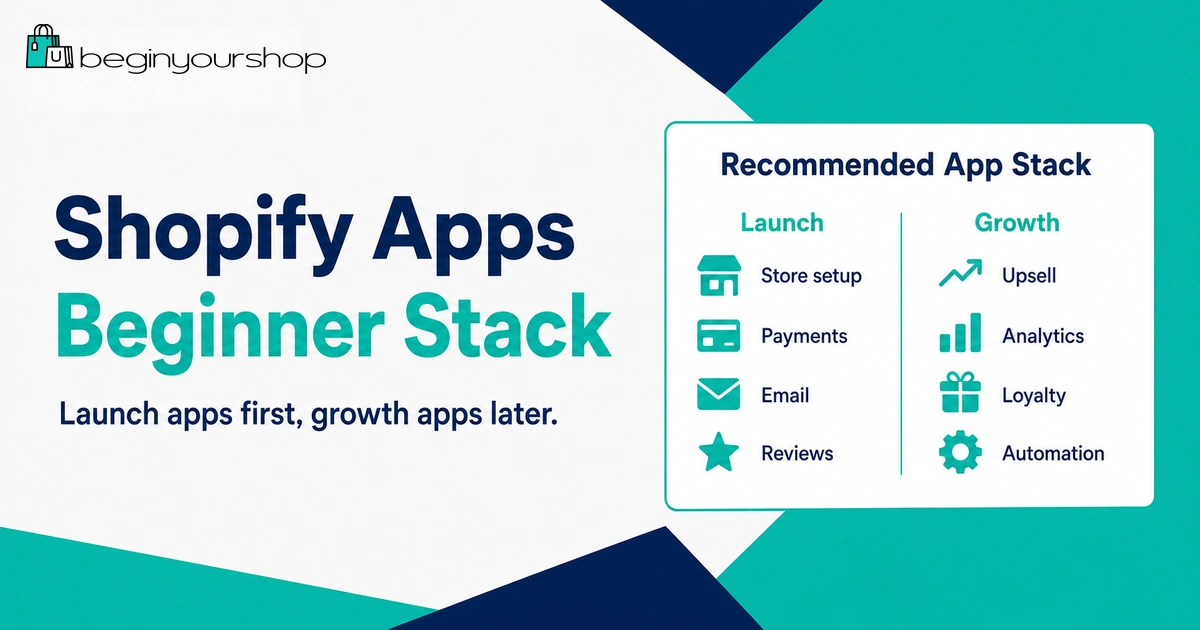
Still, most beginners can use this general framework.
Launch with zero to five apps
For many first stores, a lean launch stack is best:
- Fulfillment app: Only if you use dropshipping, print-on-demand, digital delivery, subscriptions, or a fulfillment partner.
- Email capture app: Useful if you want to collect emails before or after launch.
- Review app: Useful if you have legitimate reviews or plan to collect them after first sales.
- Support or FAQ app: Useful if your products require pre-purchase questions.
- Product options app: Only if Shopify’s native variants are not enough.
If you do not need one of these categories, do not install it just to fill a checklist.
Delay advanced growth apps
Many apps are more useful after your store has traffic and sales:
- Advanced upsell funnels
- Loyalty programs
- Referral programs
- Advanced analytics
- Complex segmentation
- Heatmaps
- A/B testing
- Multi-step post-purchase offers
- Advanced personalization
These can be valuable later, but beginners often install them before they have enough traffic to use them properly.
How to Choose Shopify Apps
When comparing apps, do not look only at star ratings. Use a practical selection framework.
1. Define the problem
Before searching the Shopify App Store, write one sentence:
“I need an app because my store needs to ________.”
Examples:
- I need customers to upload a photo for personalized products.
- I need to deliver digital files after purchase.
- I need to collect customer reviews after orders.
- I need to offer subscriptions for monthly replenishment.
- I need better shipping rules for different product types.
If you cannot define the problem, you probably do not need the app yet.
2. Check whether Shopify or your theme already does it
Some features may already exist in Shopify or your theme. Check:
- Shopify admin settings
- Theme editor options
- Theme app blocks
- Built-in product, variant, discount, shipping, and page features
- Shopify’s own apps or sales channels
Do not pay for an app when a built-in feature already solves the problem.
3. Review app listing details
On the app listing page, review:
- Pricing
- Free trial length
- Feature limits by plan
- Review quality and recent reviews
- Built for Shopify badge if present
- Support options
- Developer documentation
- Theme compatibility
- Country or language limitations
- Data access and permissions
Shopify’s Help Center says merchants can look for the Built for Shopify badge when comparing similar apps. That badge can help identify apps that meet Shopify’s quality standards, but it should not replace your own review.
4. Compare more than one app
Do not install the first app that appears in search. Compare at least three options when the feature matters to your store.
Use this comparison table before installing:
| Question | App A | App B | App C |
|---|---|---|---|
| Does it solve the exact problem? | Yes / No | Yes / No | Yes / No |
| Monthly cost at launch | Review | Review | Review |
| Cost after growth | Review | Review | Review |
| Support quality | Review | Review | Review |
| Theme compatibility | Review | Review | Review |
| Data access required | Review | Review | Review |
App Permissions and Store Access
Before installing an app, Shopify shows an install screen with the store data and areas the app needs access to. Beginners should read this carefully.
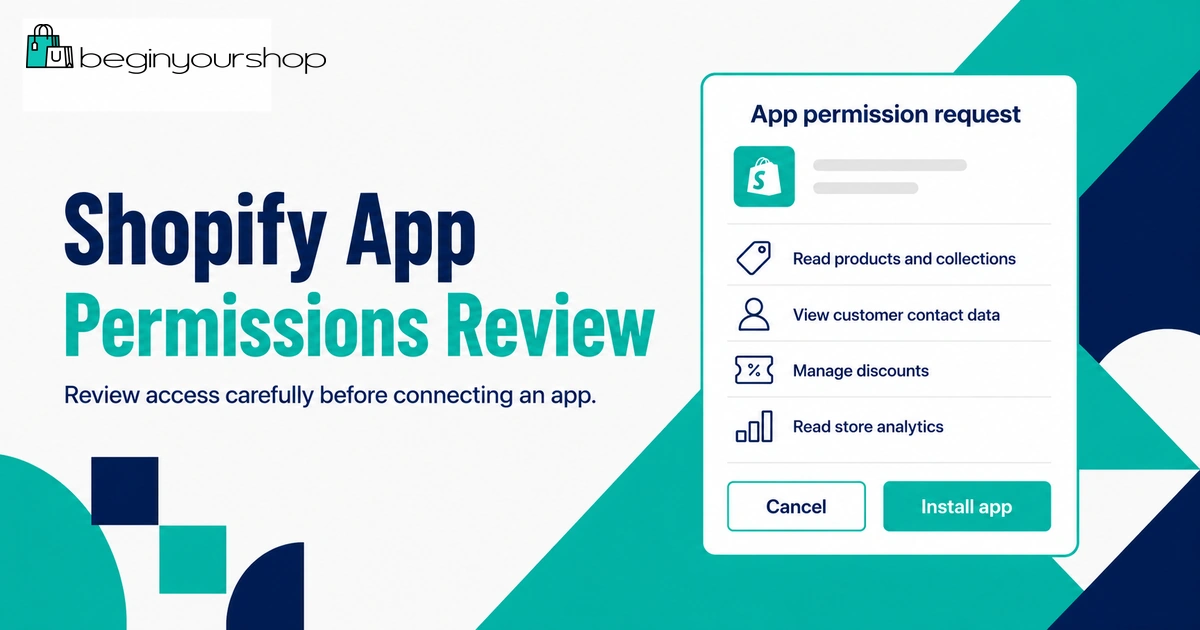
App permissions can include access to areas such as:
- Products
- Orders
- Customers
- Discounts
- Themes
- Files
- Storefront content
- Analytics
- Fulfillment data
- Marketing data
Some apps need broad access to work correctly. For example, a fulfillment app may need order and product access. A review app may need product and customer/order data. A theme design app may need theme access.
The question is not whether an app asks for permissions. The question is whether the permissions make sense for what the app does.
Security rule: If an app asks for access that does not seem related to its function, pause and review the app more carefully before installing.
Privacy and compliance
Apps can affect your privacy policy because some apps process customer data, use cookies, add tracking scripts, or connect customer information to external tools.
Review your privacy policy if you install apps for:
- Email marketing
- SMS marketing
- Analytics
- Advertising pixels
- Reviews
- Loyalty programs
- Customer support
- Personalization
- Subscriptions
For legal or privacy questions, use a qualified professional.
App Pricing and Hidden Costs
Many Shopify apps have free plans, free trials, usage-based pricing, monthly subscriptions, or feature limits. Beginners should look beyond the first listed price.
Pricing questions to ask
- Is there a free plan?
- What does the free plan include?
- When does the free plan become too limited?
- Is there a free trial?
- Does the app charge by order volume, email subscribers, revenue, staff seats, products, page views, or usage?
- Does the price increase as your store grows?
- Are important features locked behind higher plans?
- Is billing through Shopify or directly through the developer?
- What happens if you uninstall during a billing period?
Shopify’s Help Center notes that most app charges are billed through Shopify and display on your Shopify bill, but some third-party apps charge directly outside Shopify. Those external charges must be managed separately with the app developer.
App budget for beginners
A beginner store should keep app costs low until there is evidence that the app contributes to sales, fulfillment, retention, or operational clarity.
Use this simple rule:
Beginner app budget rule
Every paid app should either help customers buy, help you fulfill orders, help you retain customers, or save enough time to justify its cost.
Performance and Store Speed
Some apps add scripts, widgets, popups, tracking code, or storefront elements. These can affect performance and user experience.
Apps that can affect storefront speed include:
- Popup apps
- Review widgets
- Recommendation engines
- Upsell apps
- Analytics tools
- Heatmaps
- Live chat widgets
- Page builders
- Product filter apps
- Tracking pixels
This does not mean you should avoid all storefront apps. It means you should install them intentionally and test your store after installation.
Performance checklist after installing an app
- Check homepage loading.
- Check product pages.
- Check collection pages.
- Check mobile browsing.
- Check cart drawer or cart page.
- Check checkout path.
- Look for layout shifts or broken sections.
- Remove unused app widgets.
If an app slows the store or disrupts the design more than it helps customers, reconsider it.
Installing and Testing Apps
Shopify says you can install apps from the Shopify App Store, through a third-party install link, or with a unique link for a custom app. Most beginners should start with the Shopify App Store because it is the standard place to find and compare public apps.
Before installing
- Define the problem the app solves.
- Check whether Shopify or your theme already includes the feature.
- Compare multiple apps.
- Review pricing and feature limits.
- Read recent reviews.
- Check support options.
- Review permissions.
- Duplicate your theme if the app changes storefront design.
After installing
- Complete app setup.
- Check the app’s onboarding steps.
- Test the feature on a hidden or duplicate theme when possible.
- Check desktop and mobile display.
- Test cart and checkout if the app affects buying flow.
- Review email or notification templates if the app sends messages.
- Confirm pricing plan and billing.
- Document why you installed the app.
Do not install an app and leave it half-configured. A half-configured app can create broken widgets, confusing customer messages, or incomplete workflows.
Uninstalling Apps Safely
Uninstalling an app is not always as simple as clicking remove. Shopify’s Help Center explains that some apps add code to your online store theme that is not automatically removed when you uninstall the app.
Before uninstalling an app, review:
- Whether it added theme code
- Whether it created snippets, scripts, or app blocks
- Whether it controls customer subscriptions, reviews, files, or order workflows
- Whether customer-facing widgets need removal
- Whether data export is needed
- Whether billing must be cancelled separately
- Whether developer documentation lists extra uninstall steps
Safe uninstall checklist
- Check the app’s documentation for uninstall steps.
- Export important data if needed.
- Disable storefront widgets or blocks.
- Duplicate the theme before removing code if necessary.
- Uninstall the app from Shopify admin.
- Check your live store on desktop and mobile.
- Check app billing or external charges.
- Contact app support if leftover code remains.
If an app controls something important such as subscriptions, product options, reviews, or fulfillment, plan the uninstall carefully. Removing the app without a replacement can break part of your business workflow.
Apps to Consider Before Launch
Before launch, consider only apps that affect store function, trust, fulfillment, or customer communication.
| Need | App category | Install before launch? |
|---|---|---|
| You sell print-on-demand products | Print-on-demand fulfillment | Yes, if it is required to create or fulfill products. |
| You sell dropshipped products | Dropshipping supplier app | Yes, if it is required to import or fulfill products. |
| You sell digital downloads | Digital delivery app | Yes, if digital delivery is not already handled. |
| Your product requires personalization | Product options or file upload app | Yes, if customers cannot order correctly without it. |
| You need email collection | Email marketing or popup app | Optional, useful if configured carefully. |
| You need customer questions answered fast | FAQ, chat, or helpdesk app | Optional, based on product complexity. |
| You want reviews | Review app | Optional before launch; more useful after first customers. |
| You want advanced upsells | Upsell or funnel app | Usually wait until you have sales data. |
If an app is not required for launch, wait. You can add it after the store is live and you better understand customer behavior.
Apps to Add After You Have Sales
Once your store has traffic and sales, app decisions become easier because you have real data.
After first sales
Consider apps that improve trust, retention, or conversion:
- Review collection
- Email automations
- Abandoned checkout recovery enhancements
- Customer support workflows
- Order tracking
- Post-purchase surveys
After consistent sales
Consider apps that optimize average order value and repeat purchases:
- Bundles
- Subscriptions
- Loyalty programs
- Referral programs
- Upsells and cross-sells
- Advanced product recommendations
After significant traffic
Consider apps that help with analysis and testing:
- Advanced analytics
- Heatmaps
- A/B testing
- Attribution tools
- Customer segmentation
Growth apps are more valuable when you have enough data to understand what they should improve.
Common App Mistakes
Mistake 1: Installing apps before knowing the problem
If you install apps without a clear purpose, you create cost and complexity without a strategy.
Mistake 2: Copying another store’s app stack
Another store may have different products, traffic, budget, fulfillment, and customer needs. Their app stack may not fit your store.
Mistake 3: Ignoring permissions
Apps may request access to sensitive store data. Review permissions before installation.
Mistake 4: Forgetting app costs
Multiple small monthly app fees can quickly become more expensive than your Shopify plan.
Mistake 5: Not testing on mobile
Many app widgets look acceptable on desktop but create mobile clutter, overlap, or slow loading.
Mistake 6: Leaving unused apps installed
Unused apps can create costs, leftover scripts, and admin clutter. Review installed apps regularly.
Mistake 7: Not checking uninstall steps
Some apps leave theme code or require extra steps. Read uninstall documentation before removing important apps.
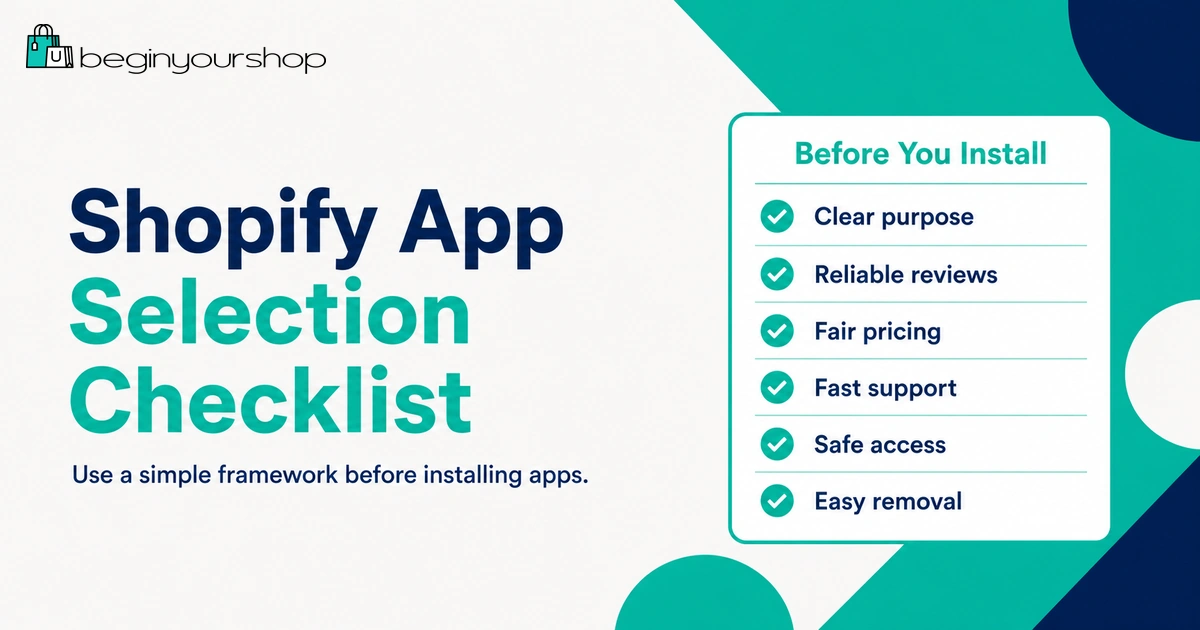
Shopify App Checklist for Beginners
Use this checklist before installing any new app.
| Checklist item | Question to answer |
|---|---|
| Problem | What exact problem does this app solve? |
| Built-in alternative | Can Shopify or my theme already do this? |
| Timing | Do I need this before launch, or can it wait? |
| Price | What will this app cost now and after growth? |
| Permissions | Does the requested access make sense? |
| Storefront impact | Will it add scripts, widgets, popups, or blocks? |
| Mobile | Does it work cleanly on mobile? |
| Support | Can I get help if setup fails? |
| Data | Can I export important data if I leave? |
| Uninstall | Are there extra uninstall steps or leftover theme code? |
Monthly App Review Routine
Once your store is live, review installed apps regularly. A monthly app review helps keep costs and complexity under control.
Monthly review questions
- Which apps are installed?
- Which apps cost money?
- Which apps are actively used?
- Which apps affect the storefront?
- Which apps have not delivered value?
- Which apps can be replaced by theme or Shopify features?
- Which apps need setup, updates, or support?
- Which apps should be removed?
Do not wait until costs become a problem. App discipline is easier when you review early and often.
Shopify Apps for Beginners FAQ
How many Shopify apps should beginners install?
Most beginners should start with only a few apps, often zero to five depending on the business model. Install only apps that solve a real launch, fulfillment, marketing, trust, or customer support problem.
Are Shopify apps free?
Some Shopify apps have free plans, but many use paid plans, free trials, usage-based pricing, or feature limits. Review pricing carefully because costs can increase as your store grows.
Are Shopify apps safe?
Apps from the Shopify App Store go through Shopify’s app review process, but you still need to review permissions, pricing, support, privacy impact, and app quality before installing. No app should be installed without review.
What apps do I need before launching a Shopify store?
You may need fulfillment apps, digital delivery apps, product options apps, email capture, reviews, or support tools depending on your store. If an app is not required for customers to buy or for you to fulfill orders, you can often wait.
Do apps slow down Shopify stores?
Some apps can affect storefront speed, especially apps that add scripts, widgets, popups, tracking, recommendations, or page-building features. Test your store after installing apps and remove unused tools.
Can I uninstall Shopify apps?
Yes, you can uninstall apps from Shopify admin, but some apps may leave code, require additional uninstall steps, or control important data. Review the app documentation before uninstalling.
What is the Built for Shopify badge?
Shopify says merchants can look for the Built for Shopify badge when comparing apps. The badge identifies apps that meet Shopify quality standards, but you should still check pricing, permissions, reviews, and fit.
Should I install SEO apps?
SEO apps can help with audits, metadata, redirects, image optimization, or structured data. But they do not replace useful content, clear product pages, internal linking, fast pages, and good store structure.
Should I install review apps before I have customers?
You can install a review app before launch if you want to prepare review collection, but reviews are most useful after real customers buy. Do not use fake reviews.
Should I use app recommendations from influencers?
Treat recommendations as starting points, not instructions. Compare apps based on your store needs, budget, permissions, reviews, support, and long-term cost.
Final Thoughts
Shopify apps can make your store more powerful, but they should be chosen carefully. Beginners should avoid app overload and focus on the few tools that directly support product delivery, customer trust, marketing, support, or operational needs.
Before installing an app, define the problem, check whether Shopify or your theme already solves it, review pricing, compare alternatives, read permissions, test mobile display, and understand uninstall steps.
Start lean. Add apps when your store has a real need. A clean, fast, well-organized Shopify store with a few useful apps is usually better than a cluttered store full of tools you do not understand.
Next recommended guide: Shopify Launch Checklist