Shopify Launch Checklist
A Shopify launch checklist helps you avoid the most common problems before opening your store to real customers. Before you remove the password page, you should confirm that your products, theme, navigation, payments, shipping, taxes, policies, checkout, mobile layout, notifications, analytics, and support details are ready.
This beginner-friendly checklist walks through what to review before launching a Shopify store, what to test on launch day, and what to monitor after your first customers start visiting.
A Shopify launch checklist helps you avoid the most common problems before opening your store to real customers. Before you remove the password page, you should confirm that your products, theme, navigation, payments, shipping, taxes, policies, checkout, mobile layout, notifications, analytics, and support details are ready.
This beginner-friendly checklist walks through what to review before launching a Shopify store, what to test on launch day, and what to monitor after your first customers start visiting.
Launching a Shopify store is exciting, but it is also the point where small setup mistakes become real customer problems. A missing shipping rate, broken menu link, unclear return policy, inactive payment method, or untested checkout can create lost sales and support issues.
This Shopify launch checklist is designed for beginners who have already started building a store and want to make sure the important basics are ready before going live.
The goal is not perfection. The goal is to launch a store that is clear, functional, trustworthy, and ready to improve based on real customer behavior.
Last checked: May 9, 2026. Shopify features, settings, plan names, payment tools, and launch workflows can change. Always confirm current instructions inside your Shopify admin and Shopify’s official Help Center before launching.

Quick Shopify Launch Checklist
If you only have a short time before launch, start with this quick checklist. These are the areas most likely to affect customer trust and checkout success.
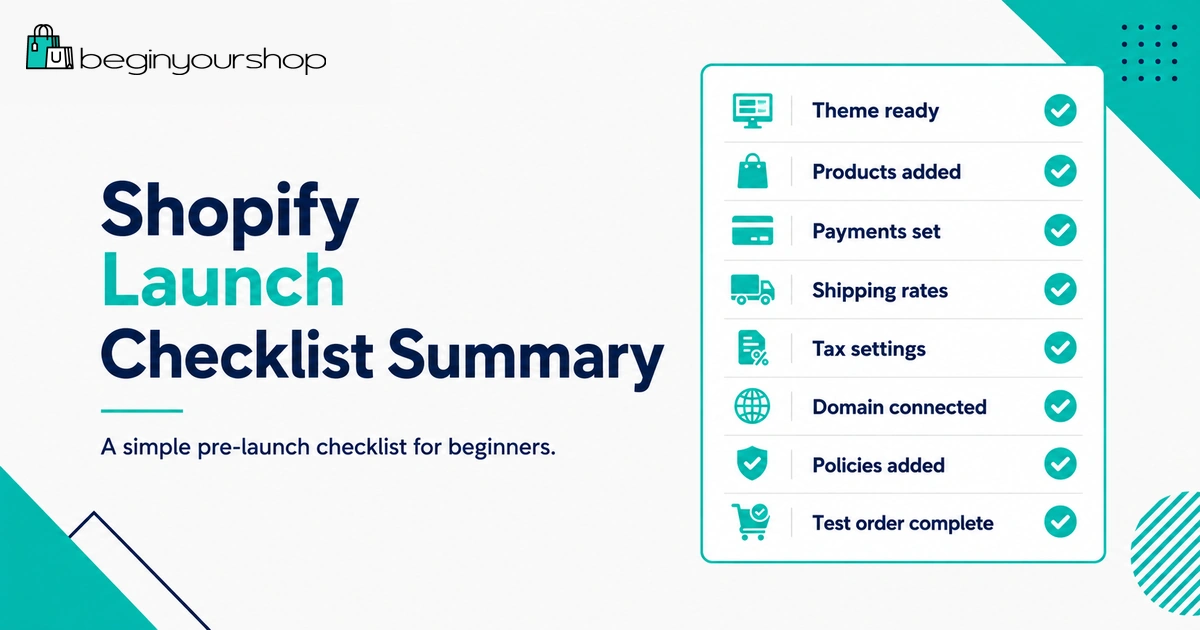
| Area | What to confirm before launch | Status |
|---|---|---|
| Products | Titles, descriptions, images, prices, variants, inventory, and product SEO are correct. | To review |
| Navigation | Main menu, footer menu, product collections, and important links work correctly. | To review |
| Theme | Homepage, product pages, collection pages, cart, and footer look clear on desktop and mobile. | To review |
| Payments | Payment provider is active, accurate, and ready to accept real customer payments. | To review |
| Shipping | Shipping zones, rates, fulfillment locations, delivery expectations, and product weights are correct. | To review |
| Taxes | Tax settings are reviewed based on your business location, products, and customer regions. | To review |
| Policies | Shipping, returns, refunds, privacy, terms, and contact information are published and linked. | To review |
| Checkout | At least one test order has been placed and reviewed from cart to confirmation email. | To review |
| Domain | Custom domain is connected, primary domain is set, and storefront password is ready to remove. | To review |
| Analytics | Analytics, pixels, conversion tracking, and key marketing tools are reviewed where applicable. | To review |
Beginner tip: Do not launch just because the homepage looks finished. A store is launch-ready only when products, checkout, shipping, payments, policies, and support are ready too.
Before You Launch: What “Ready” Actually Means
A launch-ready Shopify store does not need to be perfect. It does need to be functional.
For a beginner store, “ready” means:
- Customers can understand what you sell.
- Customers can find products easily.
- Product pages answer basic buying questions.
- Prices, variants, and inventory are accurate.
- Payment methods are active.
- Shipping options are clear and working.
- Policies are published.
- Checkout has been tested.
- Mobile visitors can browse and buy.
- Customers know how to contact you.
If those basics are covered, you can launch and improve over time. If those basics are missing, more design changes will not solve the real problem.
1. Check Your Products
Product pages are where most buying decisions happen. A product page should be clear enough that a customer can understand what the product is, why it matters, what they receive, and what happens after purchase.
Product page checklist
- Product titles are clear and specific.
- Descriptions explain benefits, details, materials, sizing, compatibility, use cases, or what is included.
- Product images are clear, consistent, and not blurry.
- Prices are correct.
- Compare-at prices are used only when there is a real discount.
- Variants such as size, color, material, quantity, or pack size are accurate.
- Inventory tracking is enabled where needed.
- Out-of-stock behavior is intentional.
- Product weight is added where it affects shipping rates.
- SKU or barcode fields are added if you use them for operations.
- Product vendor, type, category, and tags are consistent if you use them for organization.
- Search engine title and meta description are reviewed for important products.
Product description checklist
Before launch, read each important product page as if you are a new customer. If the page leaves basic questions unanswered, improve it before driving traffic.
| Customer question | Should your page answer it? |
|---|---|
| What is this product? | Yes. The first few lines should make this clear. |
| Who is it for? | Yes. Customers should know whether it fits their situation. |
| What is included? | Yes. Include quantity, size, materials, files, accessories, or packaging details where relevant. |
| How do I choose the right option? | Yes. Explain variants, sizing, colors, compatibility, or bundles. |
| When will I receive it? | Link to shipping details or provide delivery expectations where appropriate. |
| Can I return it? | Link to the return or refund policy. |
Product clarity is more important than clever copy. Beginners often underwrite product pages. If a customer needs to contact you before they understand the product, the page needs more work.
2. Review Collections and Navigation
Navigation helps visitors understand your store structure. If customers cannot find the right product quickly, they may leave before reaching checkout.
Collections checklist
- Products are assigned to the correct collections.
- Collection names are clear and understandable.
- Featured collections on the homepage link to the right pages.
- Empty or unfinished collections are hidden from navigation.
- Collection images and descriptions are reviewed if you use them.
- Sort options and filters make sense for your catalog.
Main menu checklist
Your main menu should not try to show everything. It should show the most important paths.
A simple beginner menu might include:
- Home
- Shop
- Best Sellers
- New Arrivals
- About
- Contact
If your catalog is small, keep navigation simple. If your catalog is large, use collections or dropdowns carefully. Do not make new customers decode clever category names.
Footer menu checklist
Your footer should include trust and support links:
- Contact
- Shipping Policy
- Returns and Refunds
- Privacy Policy
- Terms of Service
- FAQ if you have one
- About page
Test every menu item before launch. Broken links in the header or footer create a poor first impression.
3. Review Theme and Design
Your theme does not need to look expensive. It needs to be clear, trustworthy, and easy to use.
Homepage checklist
- The hero section clearly explains what the store sells.
- The primary call to action points to a useful collection, product, or offer.
- Featured products or collections are relevant.
- Important trust information is visible without clutter.
- Images are high quality and properly cropped.
- There are no default demo sections, placeholder text, or unused template blocks.
Product page checklist
- Product images are large and easy to view.
- Price and variants are easy to find.
- The add-to-cart button is visible and clear.
- Shipping, returns, sizing, or product details are easy to access.
- Reviews or trust signals are included only if they are legitimate.
- Related products do not distract from the main purchase path.
Cart checklist
- Cart drawer or cart page works correctly.
- Customers can update quantity or remove items.
- Discount codes work where expected.
- Cart text is not confusing.
- Checkout button is clear.
Before launch, review your store on a desktop screen, tablet size, and phone size. Many beginners design only on desktop, then discover that mobile visitors see awkward spacing, cropped images, or hidden buttons.
4. Test the Mobile Experience
Many ecommerce visitors browse from phones. Your store must be usable on mobile before launch.
Test these mobile areas:
- Homepage hero image and text
- Mobile menu
- Collection grid
- Product image gallery
- Variant selectors
- Add-to-cart button
- Cart drawer or cart page
- Checkout flow
- Contact page
- Footer links
- Announcement bar
- Popups or email signup forms if used
Mobile review rule
If a mobile customer cannot understand the product, select a variant, add to cart, and reach checkout without friction, the store is not ready for traffic.
Also check that buttons are easy to tap. Small buttons, crowded links, sticky bars, and overlapping popups can make mobile shopping frustrating.
5. Publish Essential Store Pages
Store pages help customers trust your business. They also answer questions that do not fit neatly on product pages.
Before launch, publish at least these pages:
- About: Explain who the store is for, what you sell, and why the store exists.
- Contact: Provide a clear way for customers to reach support.
- FAQ: Optional, but helpful if customers ask common questions about products, shipping, sizing, returns, or digital delivery.
- Shipping Policy: Explain regions, processing times, delivery estimates, tracking, delays, and restrictions.
- Return and Refund Policy: Explain return windows, eligibility, condition requirements, refund timing, exchanges, and non-returnable items.
- Privacy Policy: Explain how customer information is handled.
- Terms of Service: Explain general terms for using and buying from the store.
Your pages should be specific to your store. Generic policies can create confusion if they do not match your products, fulfillment method, or customer regions.
6. Review Store Policies
Store policies are not just legal pages. They shape customer expectations before purchase.
Shipping policy checklist
- Where do you ship?
- How long does order processing take?
- What are estimated delivery times?
- How are shipping costs calculated?
- Do you offer free shipping?
- Do you ship internationally?
- Are there customs, duties, or import taxes?
- How do customers track orders?
- What happens if a package is delayed, lost, or returned?
Return and refund policy checklist
- Do you accept returns?
- How many days does the customer have?
- What condition must the item be in?
- Who pays return shipping?
- Are some items final sale?
- Do you offer exchanges?
- How long do refunds take?
- How should customers start a return request?
Privacy and terms checklist
Review privacy and terms pages carefully. If you use analytics, advertising pixels, email marketing, affiliate tools, customer accounts, or third-party apps that process personal data, your policy should reflect your actual setup.
For legal, tax, privacy, or compliance questions, use a qualified professional. Templates are a starting point, not a guarantee.
7. Set Up Payments
Payment setup is one of the most important launch steps. If payment is not active or configured correctly, customers cannot complete orders.
Payment checklist
- Payment provider is available in your country or region.
- Business and personal details are accurate.
- Bank account or payout information is correct.
- Identity or business verification steps are completed where required.
- Accepted payment methods are clear.
- Payment processing fees are understood.
- Third-party transaction fees are understood if using a third-party payment provider.
- Test mode is disabled before accepting real orders, unless you are still testing.
- Checkout has been tested after payment changes.
Shopify Payments may be available depending on your country, business type, and eligibility. If Shopify Payments is not available or not suitable, review third-party payment providers carefully.
Important: Payment providers may require accurate identity, business, address, tax, and bank details. Do not use fake information in payment settings.
8. Check Shipping and Taxes
Shipping and tax settings directly affect checkout. Review them before sending real traffic.
Shipping checklist
- Shipping zones are correct.
- Shipping rates appear for every region you intend to serve.
- Products have accurate weights where weight affects rates.
- Fulfillment locations are correct.
- Free shipping rules work as expected.
- Flat rates are clear and profitable.
- Local pickup or local delivery settings are reviewed if used.
- Shipping restrictions are explained in your policy.
- International shipping rules are tested if you sell internationally.
If no shipping rates appear at checkout for a valid address, customers may be blocked from ordering. Test common shipping scenarios before launch.
Tax checklist
- Store address and business location are accurate.
- Tax settings are reviewed for the regions where you sell.
- Product tax categories or exemptions are reviewed if relevant.
- Digital product tax rules are considered if you sell digital goods.
- You understand whether you need to collect sales tax, VAT, GST, or other taxes.
Tax rules vary by location, business structure, products, and customer regions. Shopify can provide tax settings, but you are responsible for correct tax compliance.
9. Place a Test Order
Do not launch without testing checkout. A test order helps confirm that checkout, payment settings, shipping rates, taxes, inventory, discounts, and notifications work as expected.
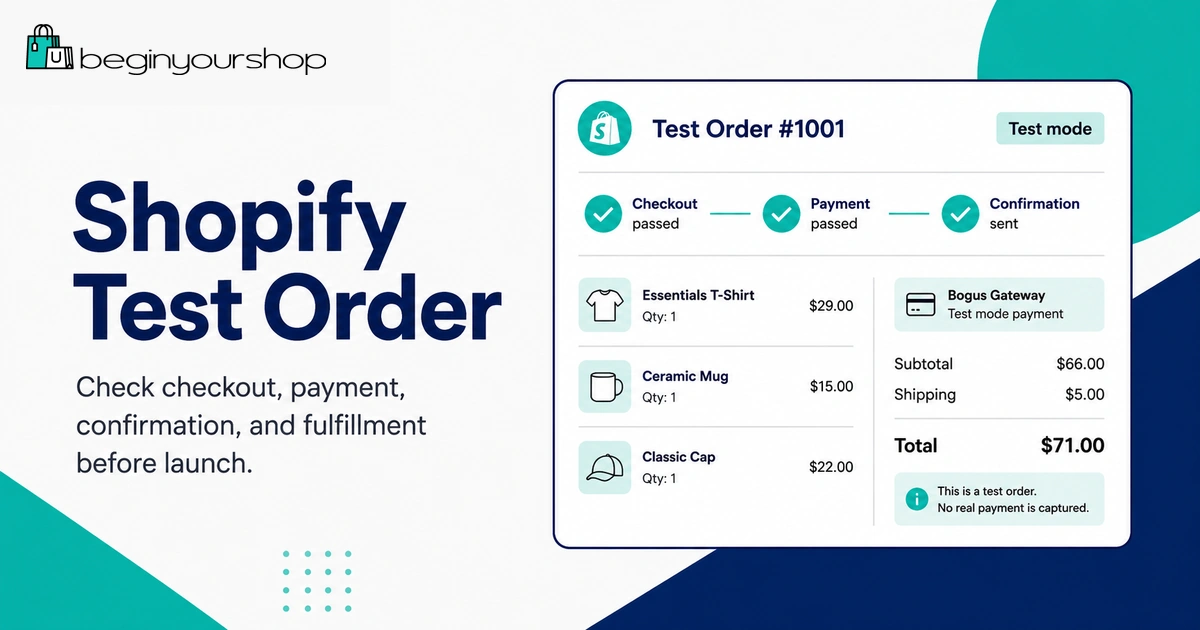
Test order checklist
- Add a product to cart.
- Change quantity in cart.
- Apply a discount code if you use one.
- Proceed through checkout.
- Test shipping rates for at least one valid customer address.
- Confirm taxes display as expected.
- Complete the order using an appropriate test method.
- Check the order confirmation page.
- Check customer notification emails.
- Check the order in the Shopify admin.
- Review inventory changes after the order.
- Review fulfillment workflow.
- Cancel or refund the test order if appropriate.
If you use Shopify Payments, review test mode instructions. If you use a third-party provider, check whether it supports test mode. If you run a real low-value transaction for testing, make sure you understand fees and refund behavior.
Checkout scenarios to test
| Scenario | Why it matters |
|---|---|
| One product, one shipping address | Confirms the basic purchase flow works. |
| Multiple quantities | Confirms cart, inventory, and pricing behave correctly. |
| Discount code | Confirms promotions apply only where expected. |
| Different shipping region | Confirms shipping zones and rates are configured properly. |
| Mobile checkout | Confirms mobile buyers can complete the order. |
10. Connect Domain and SEO Basics
A custom domain helps your store look more professional. It also makes your brand easier to remember and share.
Domain checklist
- Custom domain is connected if you use one.
- Primary domain is set correctly.
- Domain redirects work as expected.
- Storefront opens securely with HTTPS.
- Old temporary or test URLs are not used in public marketing.
- Email address or support email matches your brand where possible.
SEO basics checklist
- Homepage title and meta description are reviewed.
- Important product titles and meta descriptions are reviewed.
- Collection pages have clear titles.
- Meaningful images have useful alt text.
- Internal links point to the correct pages.
- There are no obvious broken links.
- Pages you do not want public are hidden, unpublished, or removed.
Do not delay launch for advanced SEO perfection. Get the basics right first. You can improve content, internal links, schema, and search performance over time.
11. Check Notifications and Support
Customer communication matters immediately after launch. Customers need to receive order confirmations, shipping updates, and support responses.
Email notification checklist
- Order confirmation email is active and branded enough.
- Shipping confirmation email is reviewed.
- Refund or cancellation emails are reviewed if you use them.
- Sender email is correct.
- Store name appears correctly.
- Links in emails work.
- Customer support contact information is clear.
Support checklist
- Contact page is published.
- Support email works.
- Contact form submits correctly if used.
- FAQ answers common questions.
- Return and shipping policies are easy to find.
- You have a plan for responding to customer questions.
Before launch, send yourself a test contact form submission and make sure it reaches the right inbox.
12. Set Up Analytics and Tracking
Analytics help you understand what happens after launch. You do not need every advanced tracking setup on day one, but you should have enough data to see traffic and basic performance.
Analytics checklist
- Shopify analytics are available in your admin.
- Google Analytics is connected if you use it.
- Google Search Console is set up if organic search matters.
- Ad pixels are installed only if you are running ads.
- Consent and privacy requirements are reviewed for your audience and tools.
- Test visits or test purchases do not confuse your launch analysis where possible.
Tracking can become complicated. Start with the basics, then improve once you know which marketing channels you will use.
13. Review Apps Before Launch
Apps can improve your store, but too many apps can increase cost and complexity. Before launch, review every installed app.
App review checklist
- Do you still need the app?
- Does it add a monthly cost?
- Does it affect storefront speed or layout?
- Does it add scripts, popups, widgets, or checkout changes?
- Does it collect customer data?
- Does it require policy updates?
- Is the app configured correctly?
- Can you remove it safely if needed?
Beginners often install apps while exploring, then forget about them. Remove unused apps before launch.
Launch Day Checklist
Launch day is when you move from building mode to public selling mode.
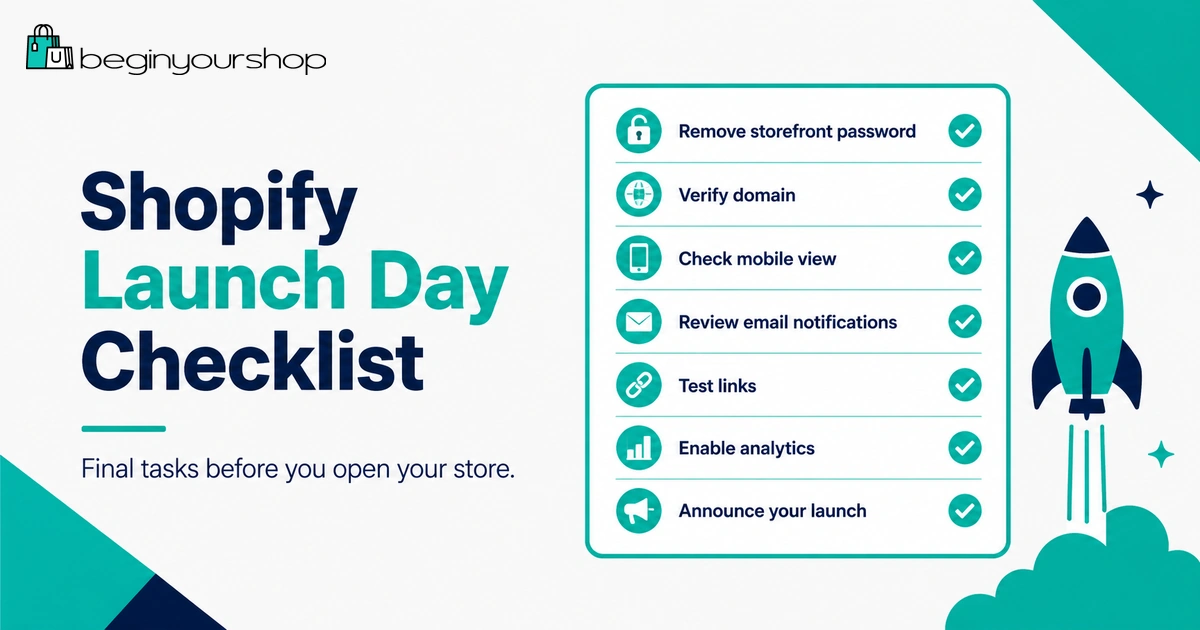
Before removing the password
- Choose the Shopify plan that fits your needs.
- Confirm billing details are correct.
- Disable payment test mode if you are ready for real orders.
- Place one final test order or checkout review.
- Confirm shipping and tax settings.
- Confirm store policies and contact page are published.
- Confirm domain is connected.
- Check mobile layout one more time.
Remove the storefront password
During store setup, Shopify stores may be password protected. When you are ready to make the store public, remove the online store password from the appropriate Online Store settings in your Shopify admin.
After removing the password, open your store in a private browser window or from another device to confirm that visitors can access it without a password.
After launch
- Visit the homepage from your public domain.
- Click major navigation links.
- Open a product page.
- Add an item to cart.
- Proceed to checkout.
- Check analytics for live traffic.
- Monitor support inbox.
- Watch for checkout errors or abandoned checkouts.
What to Monitor After Launch
Your first launch is the beginning of improvement, not the end of setup.
In the first 24 to 72 hours, monitor:
- Traffic sources
- Broken links
- Checkout errors
- Payment issues
- Shipping rate problems
- Customer questions
- Abandoned checkouts
- Product page behavior
- Mobile usability issues
- Order fulfillment process
Do not change everything immediately. Fix critical issues first: broken checkout, missing rates, wrong prices, unclear policies, or product page errors.
First Week Improvement Plan
After launch, use a simple first-week improvement plan.
| Day | Focus | What to do |
|---|---|---|
| Day 1 | Technical checks | Confirm checkout, payments, shipping, domain, support inbox, and key links. |
| Day 2 | Product clarity | Improve product descriptions, images, FAQ sections, and missing details. |
| Day 3 | Mobile experience | Review mobile browsing, cart, checkout, popups, and menu behavior. |
| Day 4 | Trust signals | Review policies, About page, Contact page, reviews, and support language. |
| Day 5 | Analytics | Review traffic, conversion rate, top pages, and abandoned checkouts. |
| Day 6 | Marketing | Choose one traffic channel to improve instead of trying everything. |
| Day 7 | Priorities | List the top three improvements for the next week. |
Common Shopify Launch Mistakes
Mistake 1: Launching with untested checkout
A store that looks good but cannot process orders is not ready. Always test checkout before launch.
Mistake 2: Forgetting shipping rates
Missing shipping rates can block checkout or surprise customers. Test shipping for the regions you plan to sell to.
Mistake 3: Leaving demo content on the store
Remove placeholder text, demo images, unused theme sections, sample products, and default template content.
Mistake 4: Using vague policies
Customers need clear answers about shipping, returns, refunds, and support. Vague policies reduce trust.
Mistake 5: Ignoring mobile visitors
Many customers shop on phones. A broken mobile layout can reduce sales even if the desktop version looks good.
Mistake 6: Installing too many apps
Apps can be useful, but too many early apps create cost, complexity, and possible performance issues.
Mistake 7: Expecting traffic immediately
Shopify gives you a store, not guaranteed visitors. You need a traffic plan.
Shopify Launch Checklist FAQ
When is my Shopify store ready to launch?
Your Shopify store is ready to launch when products, theme, navigation, payments, shipping, taxes, policies, checkout, mobile layout, domain, notifications, and support details are reviewed and functional. It does not need to be perfect, but customers should be able to browse, understand, buy, and contact you without confusion.
Do I need to place a test order before launching?
Yes. You should place at least one test order or run through an appropriate checkout test before launch. This helps confirm checkout, payments, shipping, taxes, inventory, notifications, and order processing.
Can I launch during the Shopify free trial?
You can build and prepare your store during the trial, but making the store fully public and accepting real orders usually requires choosing a paid plan and removing the storefront password. Check the current Shopify trial and plan requirements inside your admin.
What should I test first?
Start with checkout, payments, shipping rates, and product pages. These have the biggest impact on whether customers can complete a purchase.
Do I need a custom domain before launch?
A custom domain is strongly recommended for a real brand. You can technically use a Shopify-provided domain, but a custom domain looks more professional and is easier for customers to remember.
Should I launch with paid apps?
Only if the app solves a real problem. Many beginner stores can launch with few paid apps. Avoid installing apps just because other stores use them.
Should I launch with all products ready?
No. A focused store with a clear selection is usually better than a large unfinished catalog. Launch with products that are ready, accurate, and well-presented.
What should I do after launch?
Monitor checkout, payments, shipping, support messages, analytics, abandoned checkouts, mobile behavior, and customer questions. Fix critical issues first, then improve product pages and marketing.
How long should I spend preparing before launch?
It depends on your product catalog, business model, and setup complexity. A small store can be prepared in days, while a larger store may take weeks. Do not rush the core checks just to publish faster.
What is the biggest launch mistake beginners make?
The biggest mistake is focusing only on design and not testing the operational parts of the store. Payments, shipping, checkout, policies, notifications, and support matter as much as the homepage.
Final Thoughts
A Shopify launch checklist is not about delaying your store until everything is perfect. It is about making sure the essential buying experience works before real customers arrive.
Before launch, focus on products, navigation, theme clarity, mobile experience, payments, shipping, taxes, policies, checkout testing, domain setup, support, analytics, and app review.
After launch, watch how visitors behave and improve one priority at a time. The best first launch is clear, functional, trustworthy, and ready to improve.
Next recommended guide: How to Start a Shopify Store