How to Add Products on Shopify
Adding products is one of the first real setup tasks in Shopify. A product page needs more than a title and price: it should include a clear description, strong images, accurate pricing, variants, inventory, shipping details, product organization, sales channel visibility, and search engine information.
This beginner-friendly guide explains how to add products on Shopify, what each product field means, how to handle variants and inventory, how to organize products into collections, and what to check before publishing products to your store.
Adding products is one of the first real setup tasks in Shopify. A product page needs more than a title and price: it should include a clear description, strong images, accurate pricing, variants, inventory, shipping details, product organization, sales channel visibility, and search engine information.
This beginner-friendly guide explains how to add products on Shopify, what each product field means, how to handle variants and inventory, how to organize products into collections, and what to check before publishing products to your store.
Adding products to Shopify looks simple at first: open the Products area, click Add product, enter a title, upload images, set a price, and save. But a real product page needs more care than that.
Your product page is where customers decide whether the product is right for them. It also affects how your store is organized, how inventory is tracked, how shipping rates are calculated, how collections are built, how product images appear, and how search engines understand the page.
This guide walks beginners through the product setup process step by step, with practical notes on titles, descriptions, media, variants, pricing, inventory, shipping, organization, SEO, and product publishing.
Last checked: May 11, 2026. Shopify product fields, variant limits, admin layout, media limits, inventory tools, and product publishing options can change. Always confirm current details inside your Shopify admin and Shopify’s official Help Center before publishing products.

Quick Answer
To add a product in Shopify, go to Products in your Shopify admin, click Add product, then complete the important product details: title, description, media, price, inventory, shipping, variants, organization, sales channel availability, and search engine listing. Save the product, preview it, and test how it appears on your storefront before sending real visitors to it.
Most important fields
Title, description, images, price, variants, inventory, shipping, and product availability.
Biggest beginner risk
Publishing products with weak descriptions, missing shipping details, incorrect variants, or unclear images.
Best rule
Create product pages that answer real customer questions before they reach checkout.
Before You Add Products
Before adding products to Shopify, collect the information you need. This will make product creation faster and reduce mistakes.
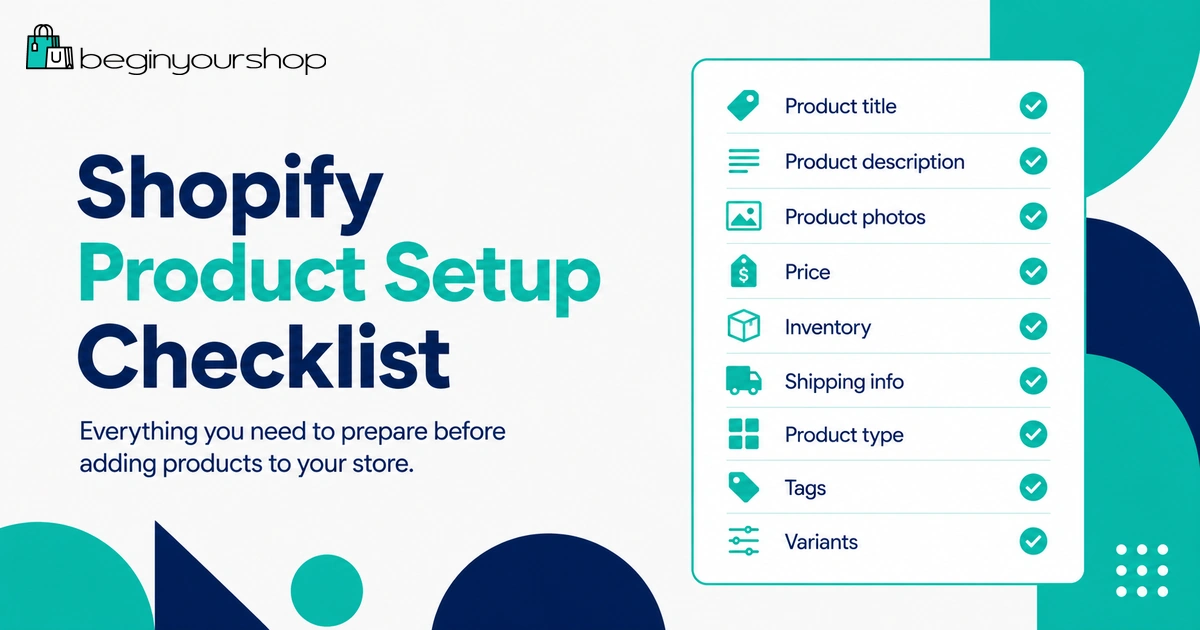
Product information to prepare
- Product name
- Short product summary
- Full product description
- Product images or videos
- Price
- Compare-at price if there is a real discount
- Cost per item if you want to track margin
- SKU if you use one
- Barcode if you use one
- Inventory quantity
- Product weight for shipping
- Variant options such as size, color, material, or style
- Product category, type, vendor, collections, and tags
- SEO title and meta description for important products
You do not need every field for every product, but you should know which details matter for your store.
Beginner tip: Do not add products one by one with random naming, tags, and descriptions. Decide on a consistent product structure first, especially if you plan to add many products.
How to Add a Product on Shopify
The basic process for adding a product is straightforward.
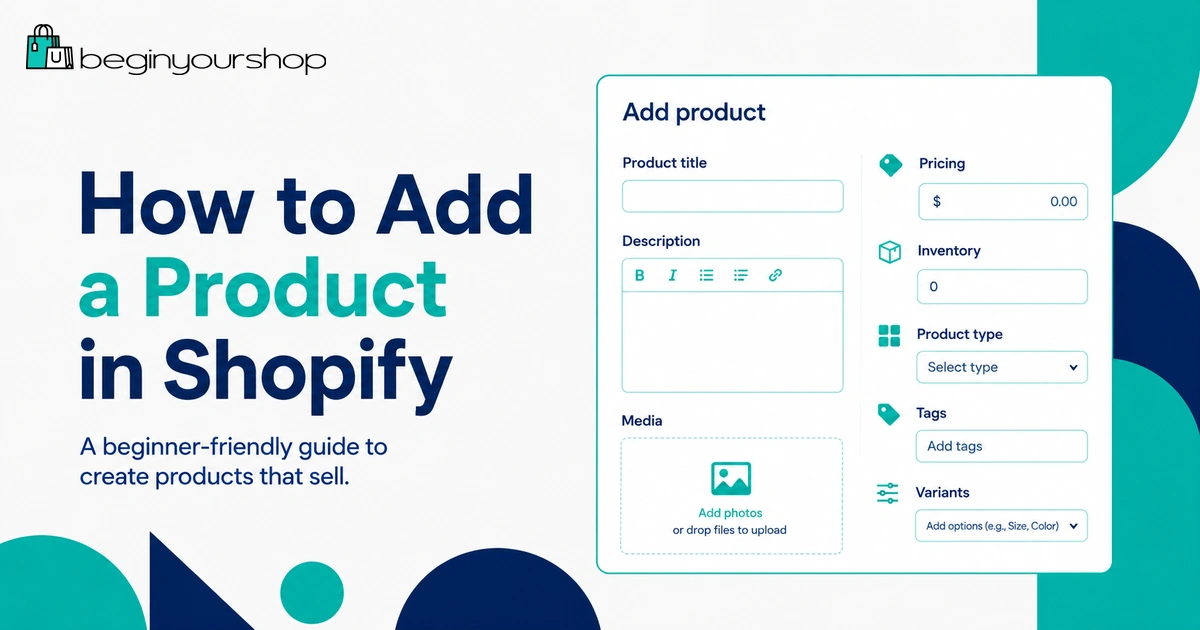
- Log in to your Shopify admin.
- Go to Products.
- Click Add product.
- Enter the product title.
- Add the product description.
- Upload product media.
- Set pricing.
- Set inventory details.
- Add variants if the product has options such as size or color.
- Add shipping details if it is a physical product.
- Organize the product with category, type, vendor, collections, and tags.
- Set sales channel and market availability.
- Edit the search engine listing if needed.
- Save the product.
- Preview the product page on your storefront.
Shopify lets you add new products or update product information from the Products page in the Shopify admin or from the Shopify app. For beginners, the desktop admin is usually easier because you can see more fields at once.
Write a Clear Product Title
The product title should quickly tell customers what the product is. It should be specific enough to be useful, but not overloaded with every detail.
Good product title examples
- Organic Cotton Baby Blanket
- Minimalist Leather Card Holder
- Reusable Glass Water Bottle - 20 oz
- Printable Weekly Planner PDF
- Classic Linen Button-Up Shirt
Weak product title examples
- New Item
- Best Product
- Premium Quality Hot Sale Product
- Beautiful Thing
- Product 001
A good title helps customers, collections, search, internal admin organization, and sometimes SEO. Keep it natural and readable.
Write the Product Description
The product description should answer customer questions. It should not be only a paragraph of generic marketing language.
A useful product description often includes:
- What the product is
- Who it is for
- Key benefits
- Important features
- Materials, dimensions, ingredients, files, or specifications
- What is included
- How to use it
- Care instructions if relevant
- Shipping or delivery notes if relevant
- Return limitations if relevant
Simple product description structure
Beginner description formula
1. Opening: Explain the product in one or two clear sentences.
2. Benefits: Explain why a customer would want it.
3. Details: List size, material, contents, compatibility, or specifications.
4. Use and care: Explain how to use, store, clean, download, or access the product.
5. Expectation: Mention shipping, processing, digital delivery, or important limitations where relevant.
Product description example
Instead of writing:
“High quality bottle, perfect for everyone, buy now.”
Write something more helpful:
“This 20 oz reusable glass water bottle is designed for everyday use at home, work, or the gym. It includes a protective silicone sleeve, leak-resistant lid, and wide mouth opening for easy cleaning. The bottle is BPA-free and suitable for cold drinks.”
Customers need clarity before persuasion. Make the product easy to understand first.
Add Product Images and Media
Product media can include images, videos, and 3D models depending on your setup and plan. For most beginners, images are the most important media type.
Shopify’s Help Center says you can add up to 250 images, 3D models, or videos to a product. The first media item is the featured or main media item, and it can display on collection pages, the cart page, checkout page, and homepage depending on your theme and setup.
Product image checklist
- Use clear images with consistent lighting.
- Show the product from multiple angles.
- Include scale or lifestyle images when helpful.
- Show important details, texture, packaging, size, or included accessories.
- Use variant images for colors, styles, or patterns when relevant.
- Avoid blurry, stretched, or overly compressed images.
- Make sure the first image works well as the main product image.
- Add alt text to meaningful product images.
What images should a product page include?
| Image type | Purpose |
|---|---|
| Main product image | Clearly shows what the product is. |
| Angle images | Shows the product from different sides. |
| Detail image | Shows texture, material, ingredients, label, or important features. |
| Scale image | Helps customers understand size. |
| Lifestyle image | Shows the product in use or in context. |
| Variant image | Shows the selected color, style, size, or option where relevant. |
Images can do work that text cannot. If your product size, color, texture, or use case is important, show it visually.
Set Pricing
Pricing affects product display, discounts, profitability, and customer expectations.
In Shopify product details, common pricing fields can include:
- Price: The current selling price.
- Compare-at price: The original price shown when displaying a discount.
- Cost per item: Your internal cost, useful for margin tracking.
- Charge tax on this product: Tax setting depending on product and region.
Pricing checklist
- Confirm the product price is correct.
- Use compare-at price only for real discounts.
- Consider product cost, payment fees, shipping, packaging, returns, and marketing.
- Check prices for every variant.
- Confirm sale prices display correctly on the storefront.
- Check currency display if you sell internationally.
Do not set prices only by copying competitors. Your cost structure, shipping method, positioning, product quality, and marketing costs may be different.
Set Inventory
Inventory settings help you avoid overselling products and help you understand when to restock or produce more inventory.
Shopify’s Help Center explains that effective inventory management helps avoid selling products that are out of stock and helps you know when you need to order or produce more.
Inventory fields to review
- SKU: Internal stock keeping unit, useful for organization and fulfillment.
- Barcode: Useful for retail, POS, or supplier workflows.
- Track quantity: Tells Shopify to track available inventory.
- Continue selling when out of stock: Allows sales after inventory reaches zero.
- Quantity: Available stock at each location.
- Locations: Where inventory is stocked or fulfilled from.
When to track inventory
Track inventory if you have limited stock, produce in batches, sell physical products, or need to prevent overselling.
You might not track inventory in the same way for:
- Digital products
- Made-to-order products
- Print-on-demand products
- Some dropshipping products
- Services
Even if you do not track inventory, you still need clear fulfillment expectations.
Add Variants
Variants are different versions of the same product. Common variant options include size, color, material, style, scent, quantity, or format.
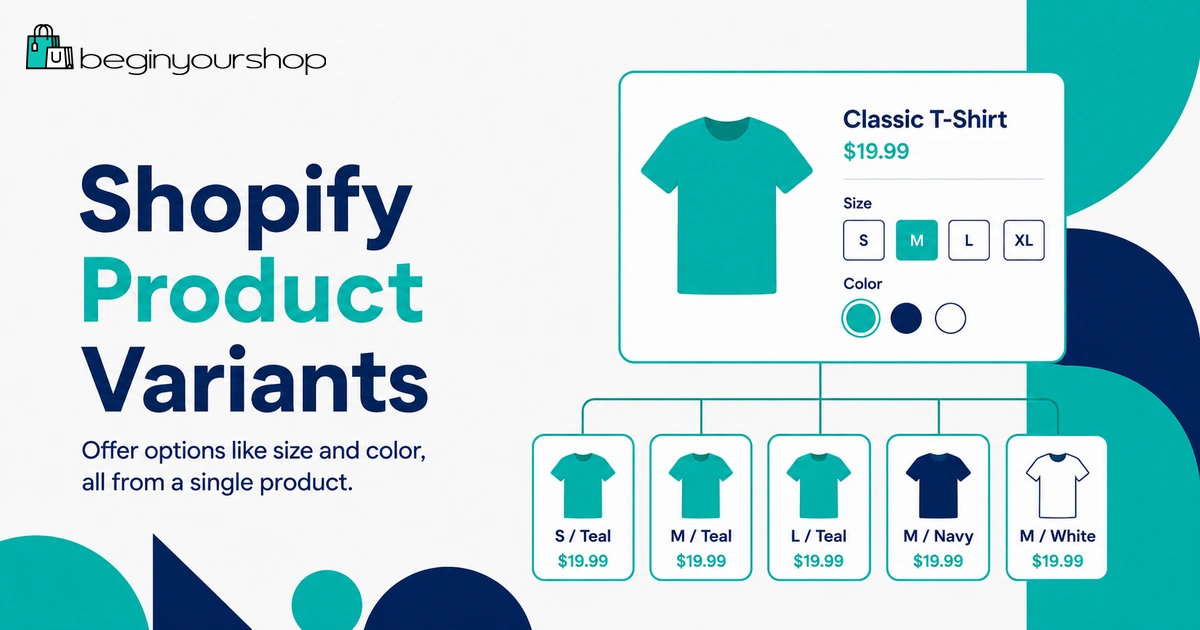
Shopify explains that each combination of option values can become a variant. For example, if a T-shirt has size and color options, “Small / Blue” is one variant and “Medium / Green” is another variant.
When to use variants
Use variants when the product is essentially the same item, but customers need to choose an option.
Good variant examples:
- T-shirt size: Small, Medium, Large
- Color: Black, White, Blue
- Material: Cotton, Linen
- Pack size: 1-pack, 3-pack, 6-pack
- Digital format: PDF, Canva template
When not to use variants
Do not use variants when the products are truly different products with different purposes, product pages, descriptions, images, or SEO targets.
For example, a “ceramic mug,” “linen tote bag,” and “wall print” should usually be separate products, not variants of one product called “Merch.”
Variant checklist
- Variant option names are clear.
- Variant values are consistent across products.
- Each variant has the correct price.
- Each variant has the correct SKU if used.
- Each variant has the correct inventory quantity if tracked.
- Each variant has the correct weight if shipping differs.
- Variant images are assigned when helpful.
- Unavailable variants are handled intentionally.
Shopify’s current variant system supports more complex variant setups than older Shopify versions, but stores with very complex product configurations may still need a product options app or custom solution. Always check current Shopify variant limits and your theme’s display capabilities before building a large catalog around complex variants.
Set Shipping Details
Shipping details matter for physical products because they affect rates, fulfillment, and customer expectations.
Shipping fields to review
- Whether the product is a physical product
- Product weight
- Customs information for international shipping
- Country or region of origin
- Harmonized system code where needed
- Fulfillment location
- Shipping profile if you use custom shipping profiles
If product weight is missing or wrong, calculated shipping rates may be wrong. If shipping zones are incomplete, customers may reach checkout and see no available shipping options.
Shipping notes by product type
| Product type | Shipping setup note |
|---|---|
| Physical product | Use accurate weight, fulfillment location, and shipping profile. |
| Digital product | Do not treat it like a physical product. Use a digital delivery setup if needed. |
| Print-on-demand | Confirm the provider’s shipping rates, regions, and processing times. |
| Dropshipping | Confirm supplier shipping times, tracking, return limitations, and customer expectations. |
| Made-to-order | Clearly explain production time before shipping. |
Organize Products
Product organization helps both customers and store owners. Shopify says product details help you organize products and help customers find them.
Important organization fields can include:
- Product category: Shopify’s product taxonomy category.
- Product type: Your internal product grouping.
- Vendor: Brand, supplier, maker, or vendor name.
- Collections: Groups of products shown in your store.
- Tags: Internal labels used for filtering, automation, or organization.
Collections
Collections are customer-facing groups of products. They help shoppers browse by category, theme, use case, or product type.
Common collection examples:
- New Arrivals
- Best Sellers
- Gift Ideas
- Skincare
- Accessories
- Digital Templates
- Sale
Collections can be manual or automated depending on how you set them up. Automated collections can use conditions such as product tags, product type, price, vendor, or other details.
Tags
Tags are useful, but beginners often overuse them. Keep tags consistent and intentional.
Use tags for:
- Internal organization
- Automated collection rules
- Filtering workflows
- Product management
- Campaign grouping
Avoid random tags that mean the same thing in different ways, such as “blue,” “Blue,” “blue-product,” and “color-blue.” Consistency matters.
Set Product Availability
Product availability controls where a product can be sold or displayed. A product can exist in your admin but not be visible on your online store if it is not available to the right sales channel.
Before publishing, check:
- Is the product active or draft?
- Is the product available on the Online Store channel?
- Is it available in the markets or regions where you plan to sell?
- Should it appear on other sales channels?
- Should it be hidden until launch?
Use draft status for products that are not ready. Do not publish incomplete products just to “save time.”
Edit Search Engine Listing
Shopify lets you edit the search engine listing for a product. This usually includes the page title, meta description, and URL handle.
Product SEO checklist
- Use a clear product title.
- Write a meta description that summarizes the product naturally.
- Keep the URL handle short and readable.
- Use descriptive image alt text for meaningful images.
- Link related products or collections where helpful.
- Avoid duplicating the same description across many products.
For product SEO, the best starting point is a useful product page. If customers cannot understand the product, search engines will not fix that.
Example SEO title and description
Product: Organic Cotton Baby Blanket
SEO title: Organic Cotton Baby Blanket for Newborns
Meta description: Soft organic cotton baby blanket for newborns, designed for everyday comfort, stroller use, nursery layering, and thoughtful baby gifts.
Do not keyword-stuff product titles or meta descriptions. Make them useful and readable.
Preview and Test Products
After saving a product, preview it on your storefront. Do not judge only from the Shopify admin.
Product preview checklist
- Product title displays correctly.
- Description is readable and formatted well.
- Images appear in the right order.
- Main product image looks good on collection pages.
- Variants display correctly.
- Prices are correct.
- Sale prices display correctly if used.
- Inventory behavior is correct.
- Add-to-cart button works.
- Shipping information is easy to find.
- Related products or recommendations make sense.
- Product page works on mobile.
Test product purchase flow
For important products, test the buying path:
- Open the product page.
- Select a variant.
- Add the product to cart.
- Review the cart.
- Go to checkout.
- Confirm shipping rates appear.
- Confirm taxes appear as expected.
- Confirm the payment method appears.
If a customer cannot select the right product option, see shipping, and reach checkout, the product is not ready.
Adding Many Products: Manual Entry vs Import
If you have only a few products, adding them manually is usually fine. If you have many products, you may need a CSV import, app, supplier integration, or product migration tool.
Manual product entry is best when:
- You have a small catalog.
- You are still learning Shopify.
- Products need careful descriptions and images.
- You want to understand product fields before importing at scale.
CSV import may be better when:
- You have many products.
- You already have product data in a spreadsheet.
- You need consistent SKUs, prices, tags, and inventory.
- You are migrating from another platform.
For beginners, I recommend manually adding a few sample products first. Once you understand the product fields, importing larger batches becomes much easier.
Beginner Product Page Template
Use this structure for your first product pages:
Product page structure
- Product title: Clear and specific.
- Opening description: Explain the product in one or two sentences.
- Key benefits: List why a customer would want it.
- Product details: Materials, size, contents, compatibility, or specifications.
- Images: Main image, detail images, lifestyle images, and variant images if needed.
- Variants: Size, color, style, or format choices.
- Shipping and returns: Link or summarize important expectations.
- FAQ: Answer common questions if the product is complex.
This structure is simple, but it covers the information most customers need before buying.
Common Product Setup Mistakes
Mistake 1: Using vague product titles
A vague title makes products harder to understand, organize, and search. Use clear titles that describe the product.
Mistake 2: Writing thin descriptions
A short description may work for obvious products, but many products need details, benefits, sizing, materials, or usage instructions.
Mistake 3: Uploading poor images
Blurry, inconsistent, or misleading images reduce trust. Product images should help customers understand the product.
Mistake 4: Forgetting variant-level details
If a product has variants, prices, inventory, SKUs, images, and shipping details may need attention at the variant level.
Mistake 5: Missing product weight
For physical products, missing or incorrect weight can affect shipping rates.
Mistake 6: Publishing products before they are ready
Use draft status until product pages are complete enough for real customers.
Mistake 7: Overusing tags
Too many inconsistent tags can make product management harder. Use tags with a clear system.
Mistake 8: Ignoring mobile preview
Many customers browse from phones. Always check product pages on mobile before launch.
How to Add Products on Shopify FAQ
How do I add a product on Shopify?
Go to Products in your Shopify admin, click Add product, enter product details such as title, description, media, price, inventory, shipping, variants, organization, and sales channel availability, then save and preview the product.
What information do I need to add a product?
You usually need a title, description, images, price, inventory details, shipping details, variants if applicable, product organization details, and SEO information for important products.
Can I add products from the Shopify app?
Yes. Shopify says you can add or update products from the Products page in your Shopify admin or in the Shopify app. For beginners, the desktop admin is usually easier for detailed setup.
How many images can I add to a Shopify product?
Shopify’s Help Center says you can add up to 250 images, 3D models, or videos to a product. Plan limits and media type requirements can vary, especially for videos and 3D models.
What are product variants in Shopify?
Variants are different versions of a product, such as size, color, material, or style. Each combination of option values can become a variant.
Should each color be a variant or a separate product?
If the product is essentially the same and only the color changes, use variants. If each color has a different audience, page content, SEO target, or product story, separate products may be better.
What is the difference between product type and tags?
Product type is usually a broader product classification. Tags are more flexible labels used for organization, automated collections, filtering, or internal workflows. Keep both consistent.
Do I need SKUs for Shopify products?
SKUs are not always required, but they are useful for inventory, fulfillment, supplier coordination, reporting, and product organization. If you plan to grow, a SKU system can help.
How do I make a product visible on my Shopify store?
Save the product, set it as active, and make sure it is available on the Online Store sales channel and any relevant markets or sales channels.
Should I manually add products or import them with CSV?
If you have a small catalog, manual entry is easier and helps you learn Shopify. If you have many products, a CSV import or integration may be faster after you understand the product field structure.
Final Thoughts
Adding products to Shopify is not just data entry. It is the foundation of your store’s shopping experience.
A strong product page should clearly explain what the product is, show it with useful images, set accurate pricing, handle variants correctly, track inventory where needed, include shipping details, organize the product properly, and display well on desktop and mobile.
Start with a few carefully built products before adding a large catalog. Once you have a reliable product structure, scaling your catalog becomes easier and less error-prone.
Next recommended guide: Shopify Launch Checklist